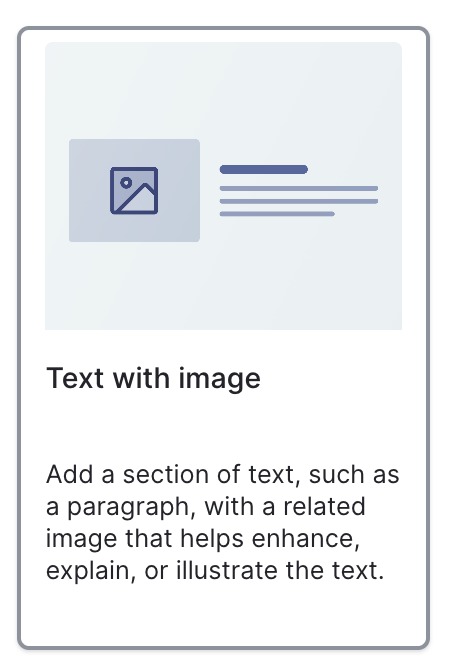
Text with image
Where to use this component
Use to add a related image that helps to enhance, explain or illustrate the text on these pages:
How to add this component to the page
1. Go to the page you want to edit, or the page you have created. In the Main content section select the "+ Add" button. Choose the "Text with image" component.
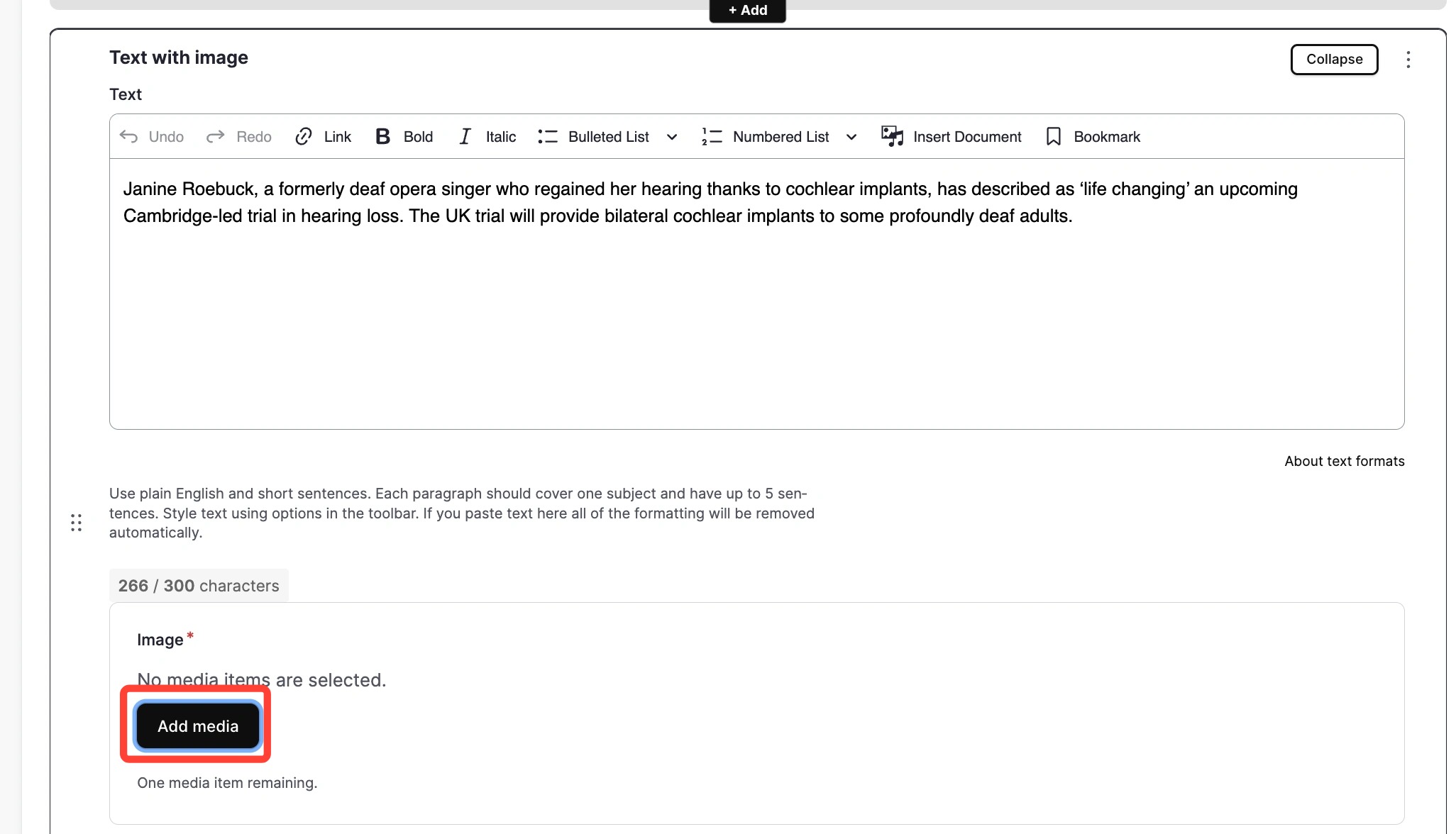
2. Type or paste text into the text area (maximum 300 characters). To add an image, click "Add media".
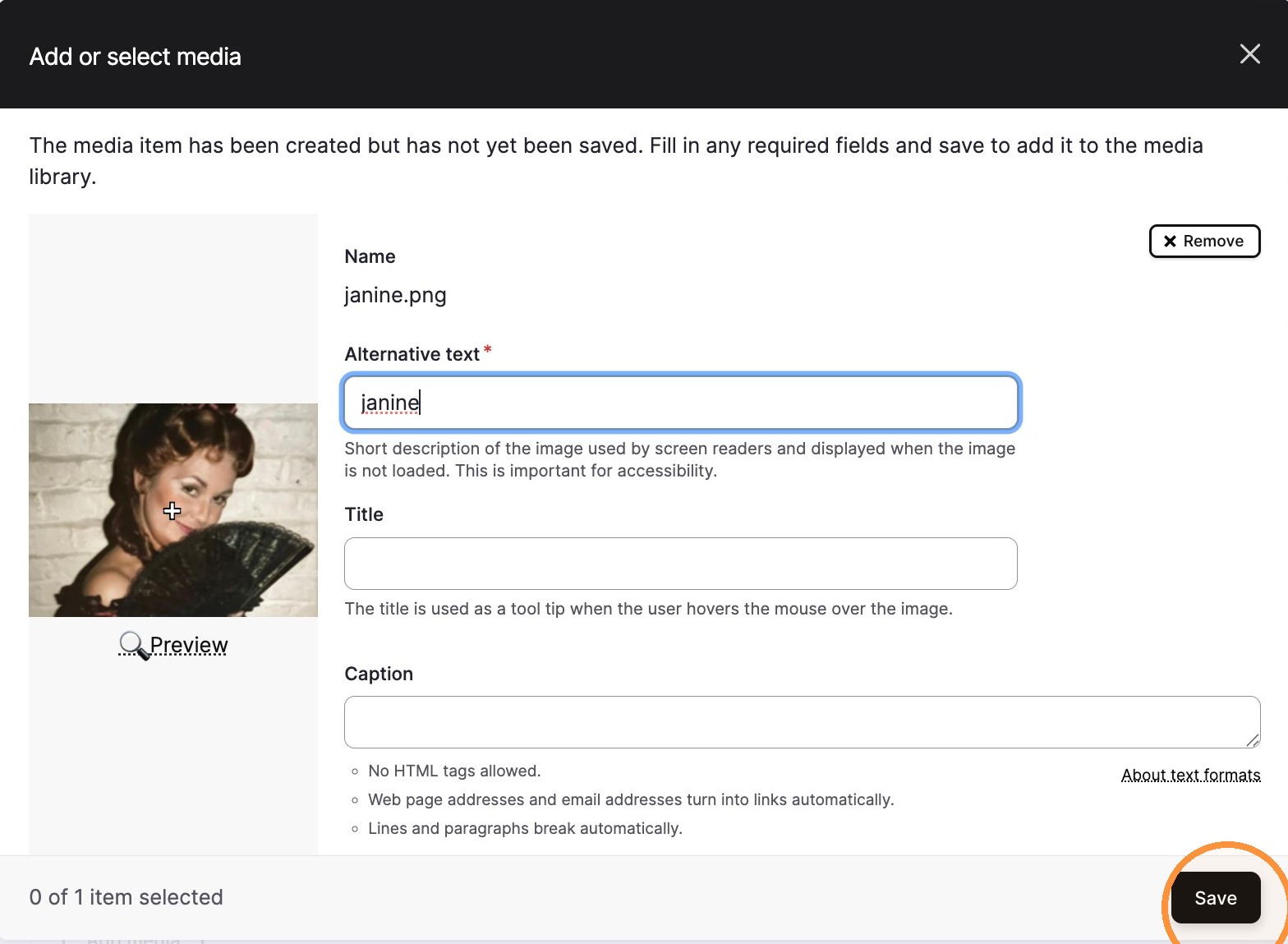
3. Select "Choose file" and upload the image. Add alternative text for accessibility reasons. Click the "Save" button then "Insert selected".
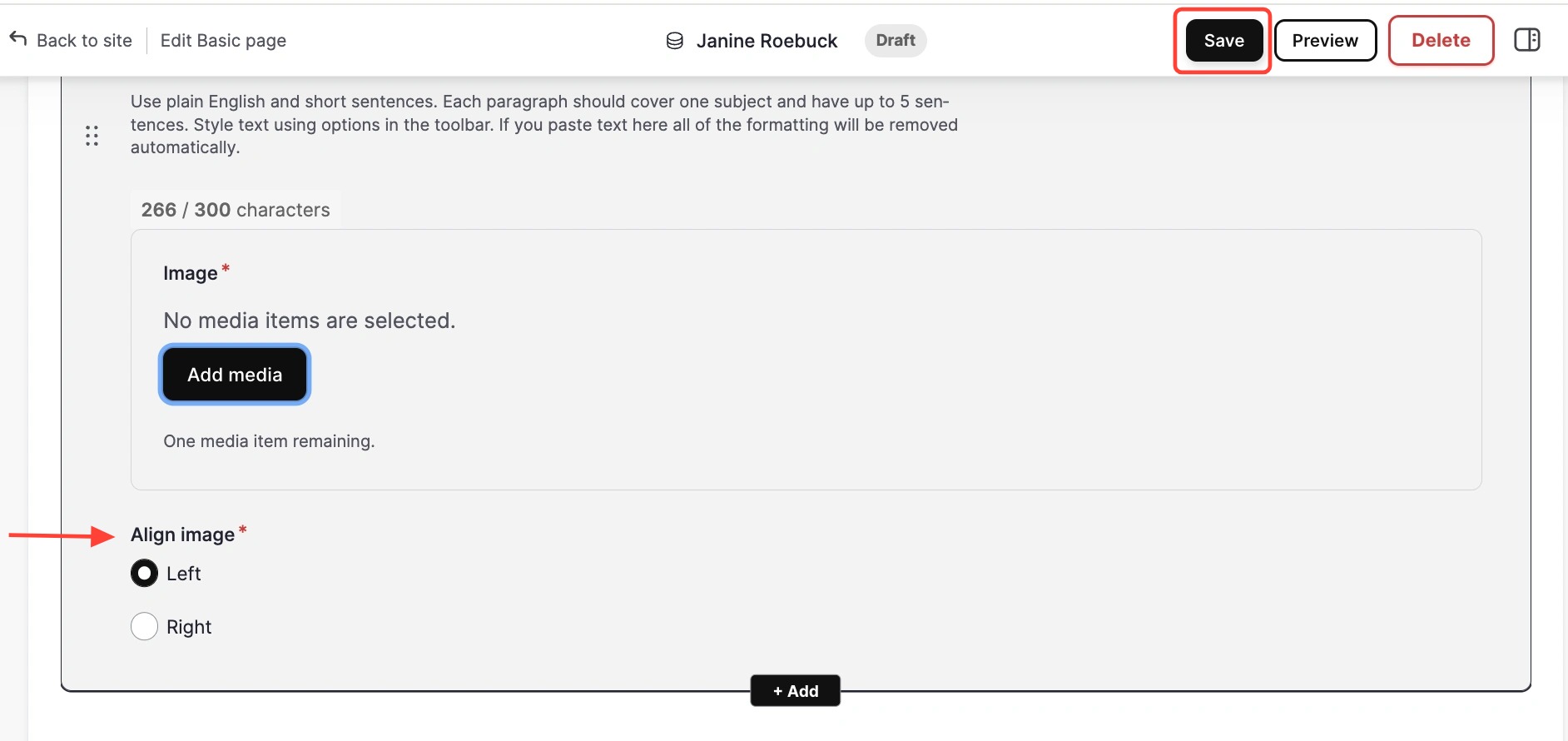
4. You can align the image to the left or right. Once the component is ready, select "Save".
5. The new text with image section will appear on the webpage.