
Link grid
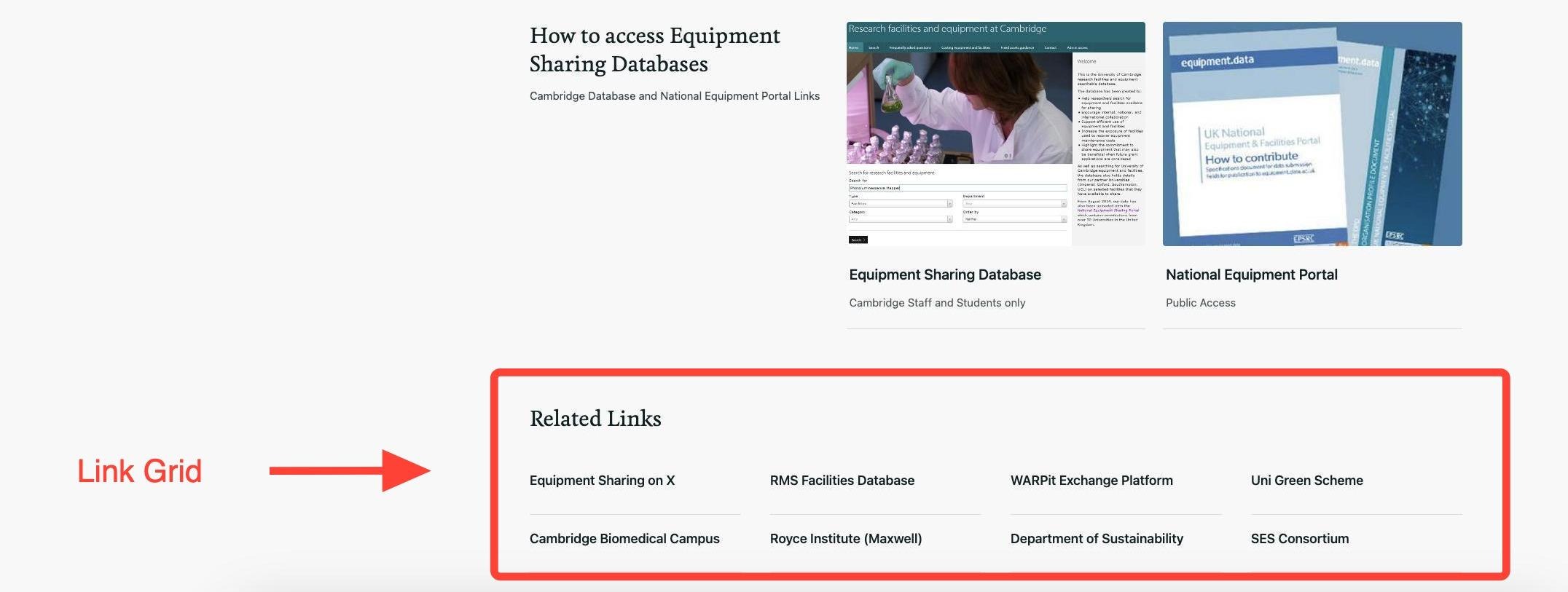
The link grid allows you to add 3 to 12 links to your homepage. Add links to the most popular pages on your website so that users can get to them quickly.

See examples of all the available content types and components on the Cambridge Web Platform showcase site.
Tips for using correctly
- start links with a verb, for example ‘find, apply, read, tell, meet, see, view, and so on
- keep it simple, use plain English, don’t use acronyms, jargon or Cambridge-only terminology
- link to other websites only if you are certain information is up to date and trustworthy
- do not use it to replicate navigation
How to add this component to the page
1. One of the components you can add to the homepage is the Link grid. Use this component to add 3 to 12 links. Add links to the most popular pages on your website so that users can get to them quickly.
2. To add this component, navigate to the homepage and select "Edit".
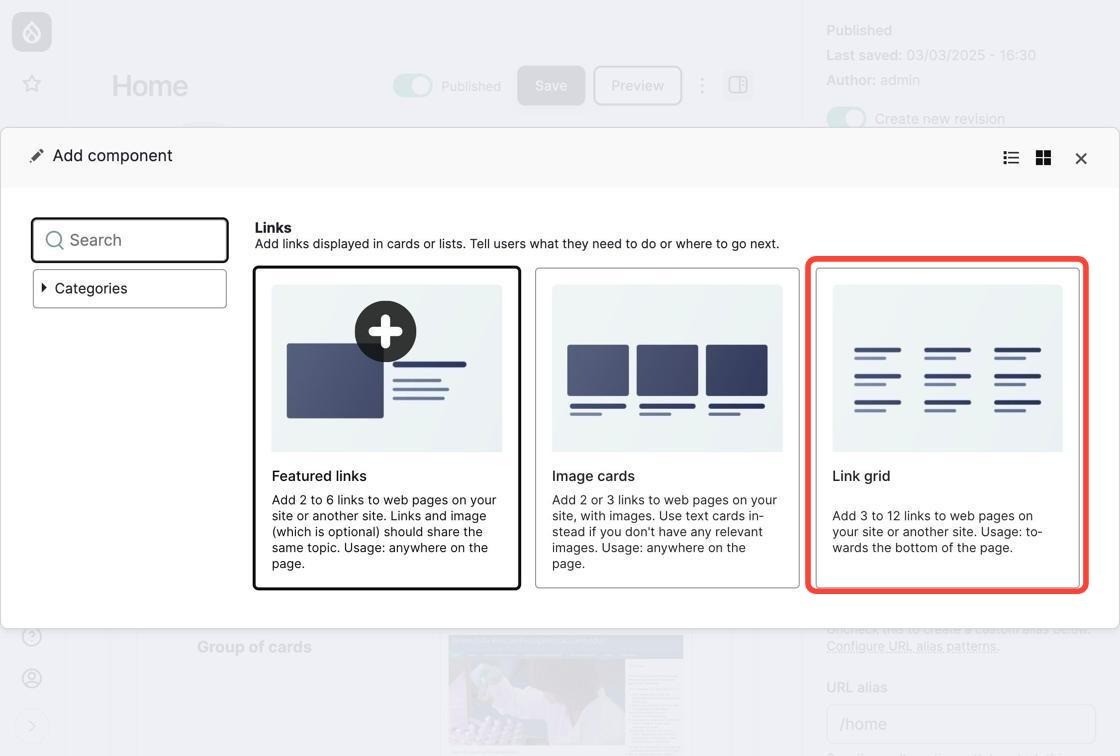
Select "+ Add" button in the Main Content section and then click on "Link grid".
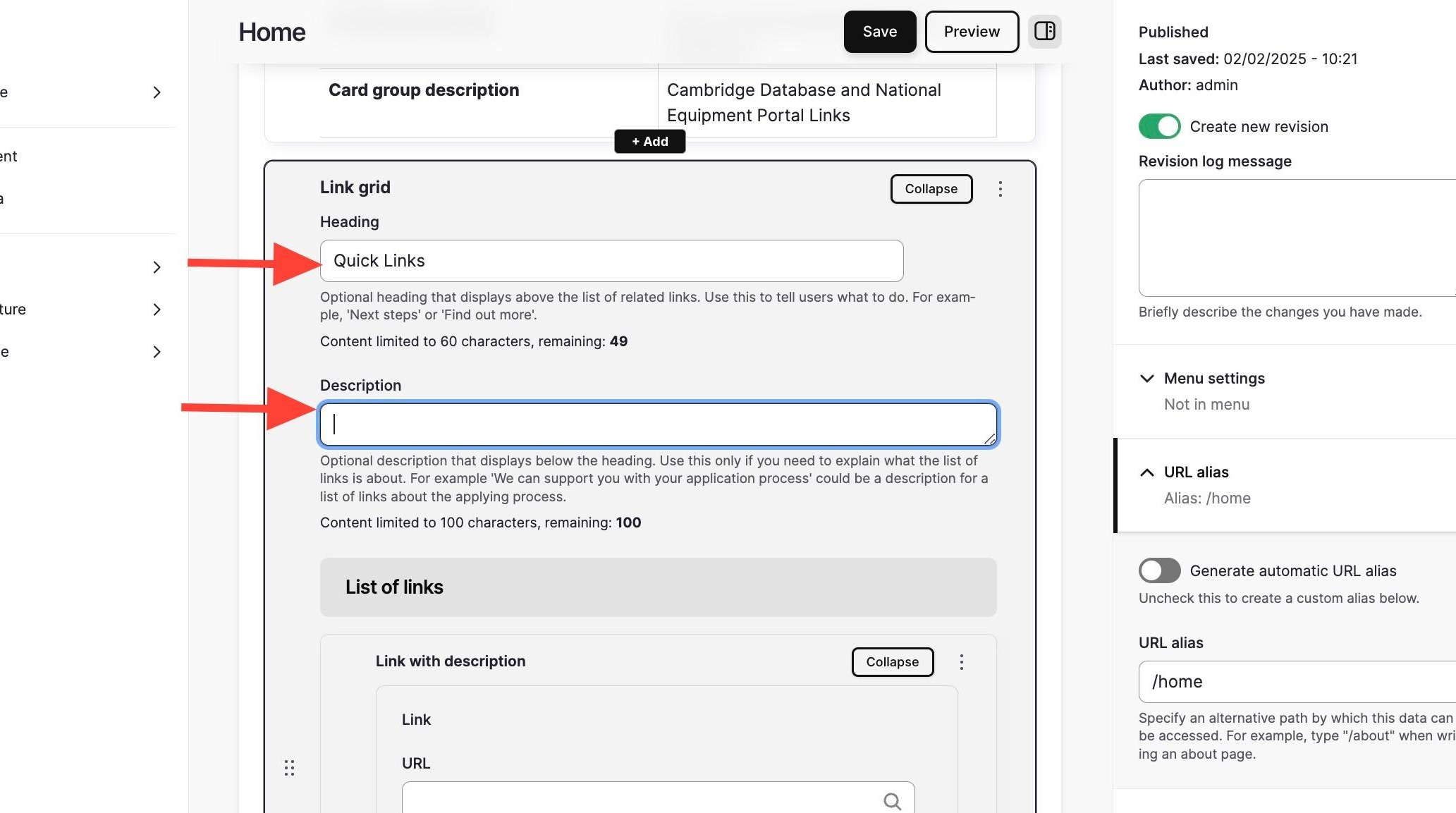
3. Add an optional heading for your links and an optional description explaining what the list of links is about.
Scroll down to add the first link.
4. For every link, provide URL, link text and an optional description.
If you want to create an internal link, start typing the page title in the URL field and then select the correct page from the dropdown.
Start link text with a verb, for example 'find, apply, read, tell, meet, see, view, and so on'. Do not use ‘click here’ or ‘more’ as links
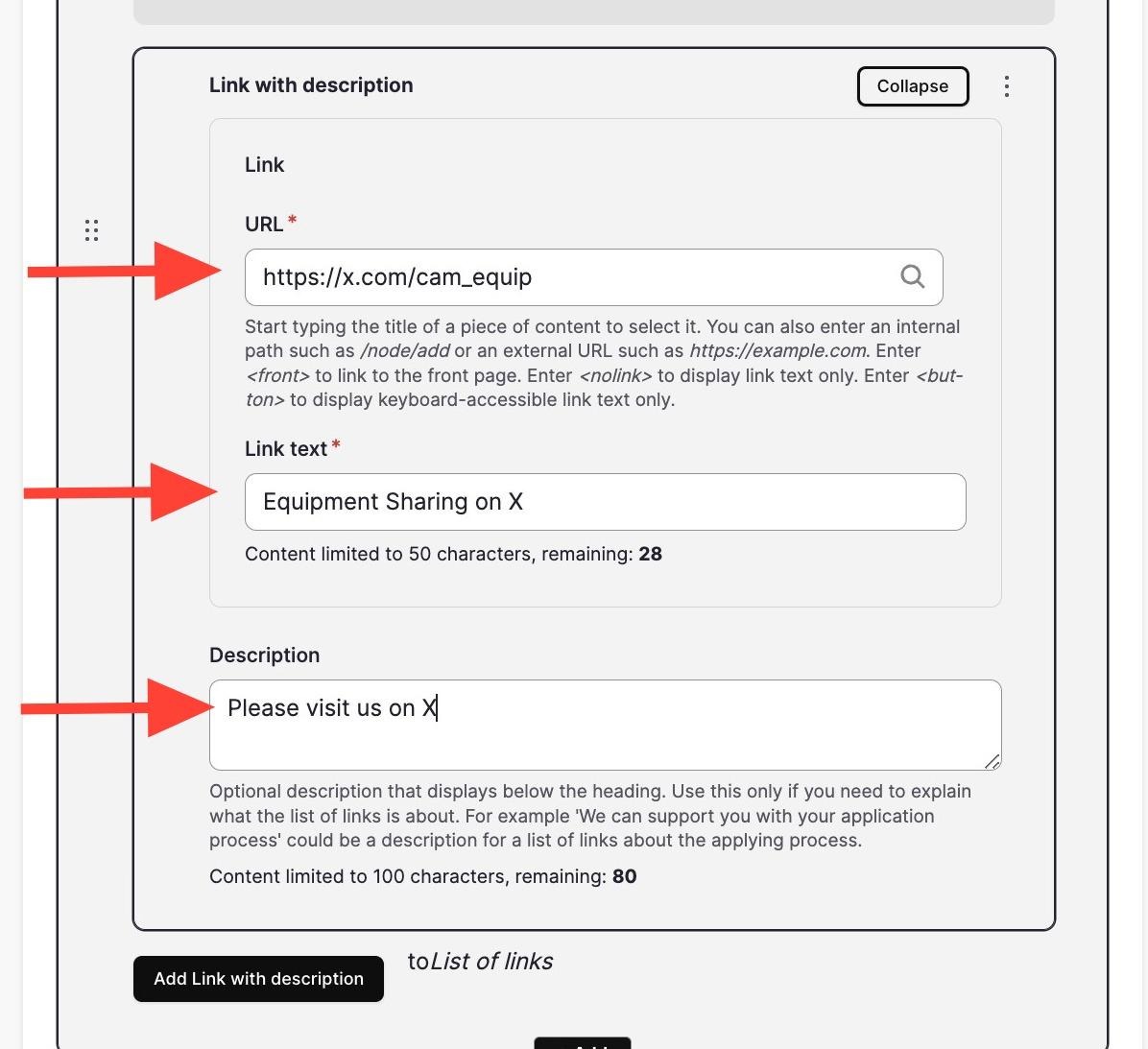
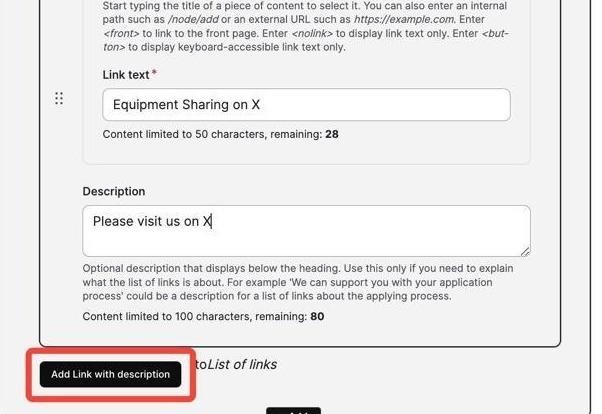
5. Select "Add Link with Description" to add another link. You need to add between 3 and 12 links in total.
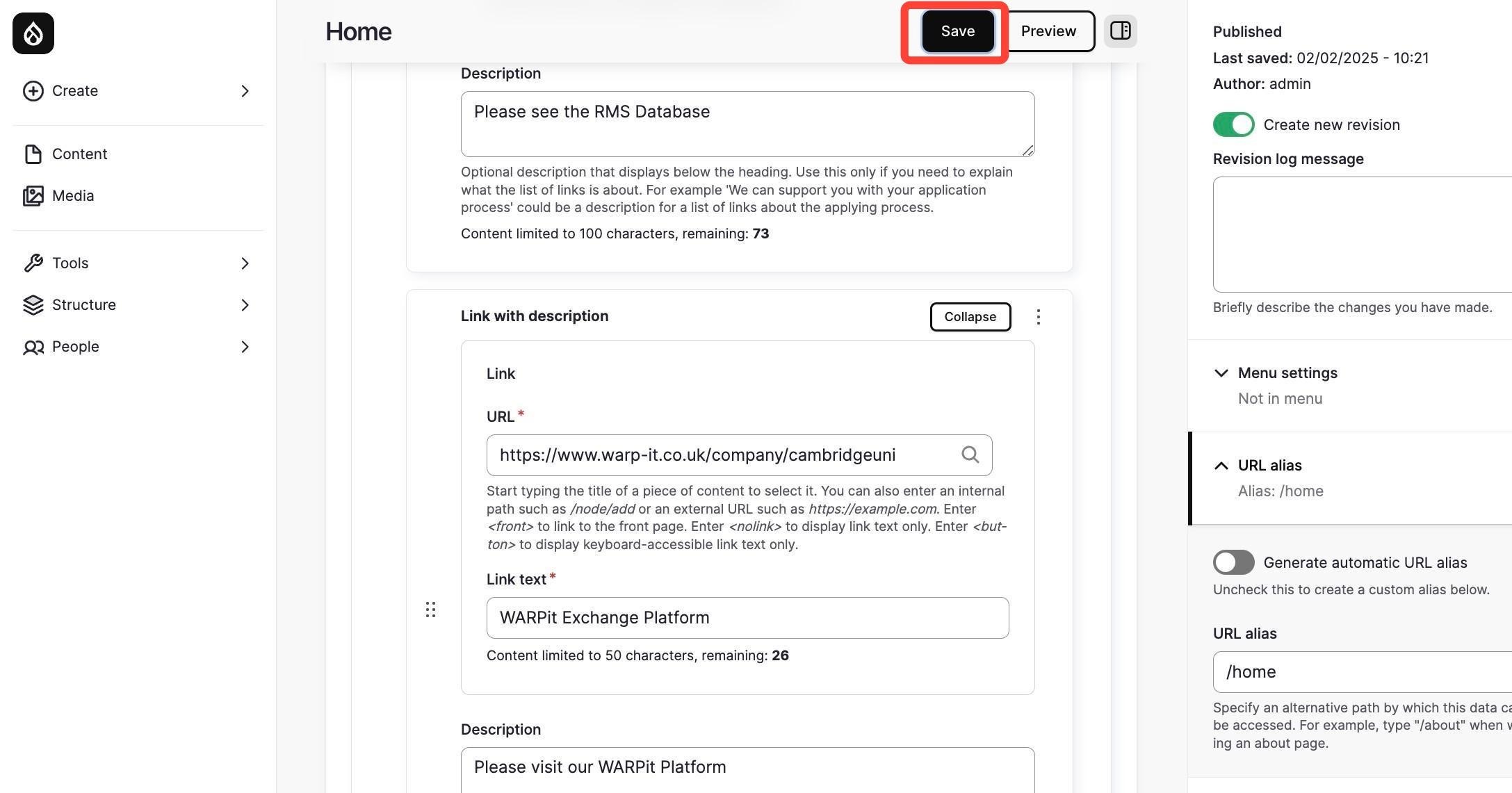
6. After adding all the links, click "Save".
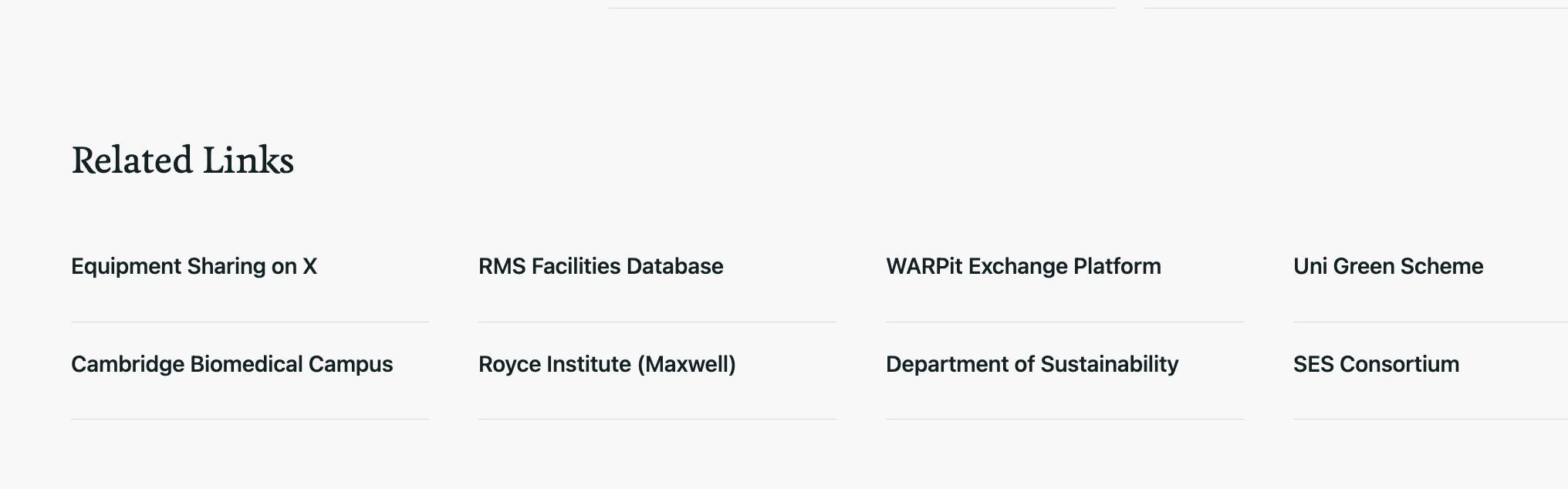
7. The Link grid component will appear on the homepage.
Video instructions
Watch step-by-step video instructions on Scribe.how.