
Setting permissions to edit a profile
If you would like a person to be able to edit their own profile, you'll need to take two extra steps:
- Give them Profile editor permissions
- Add their CRSid to the "Authored by" field
Give someone Profile editor permissions
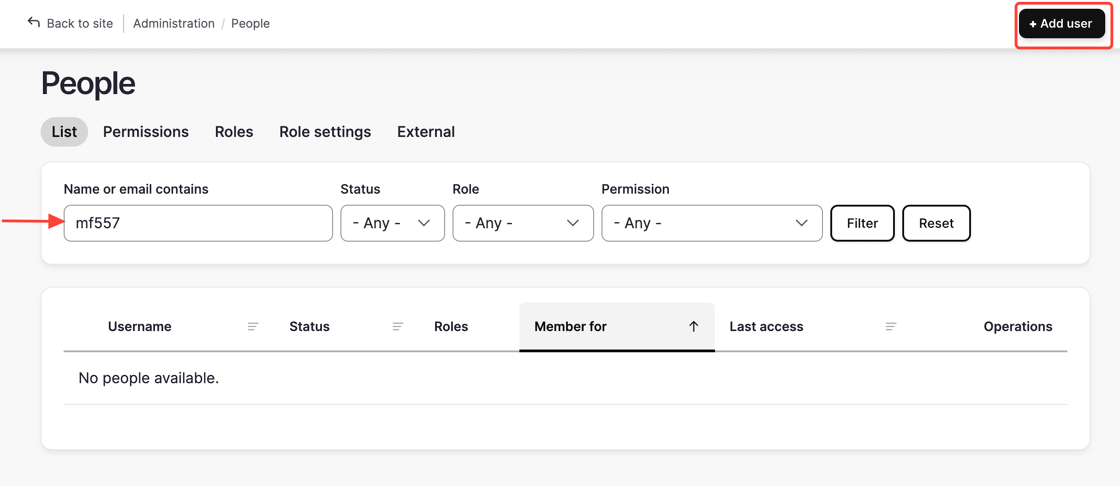
1. Click the "People" tab in the left-hand menu. Use the filter at the top to check whether the person already has an account by searching for their CRSid.
2. If the person already has an account, there’s no need to create a new one. Simply edit the existing account and update their role to "Profile editor".
If they don’t have an account, click "Add User" in the top-right corner.
3. Add the email address of the person you want to give access to. This must be in the format: [CRSid]@cam.ac.uk. For example, abc123@cam.ac.uk.
4. Enter the person's CRSid. For example, "abc123".
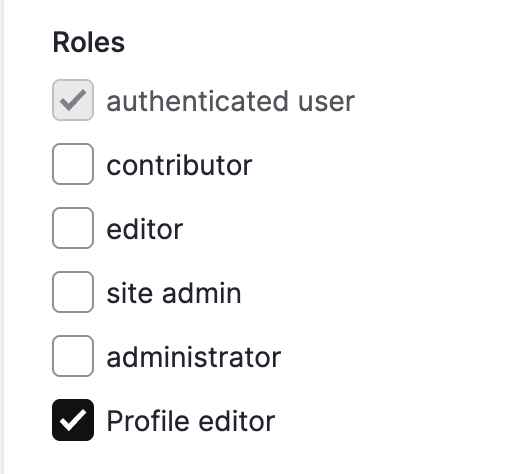
5. Choose a role: Profile editor.
6. Save by clicking the black "Create new account" button underneath.
Add their CRSid to the “Authored by” field
1. Go to the individual’s staff profile and select the "Edit" tab.
2. From the right-hand panel, choose "Authoring information".
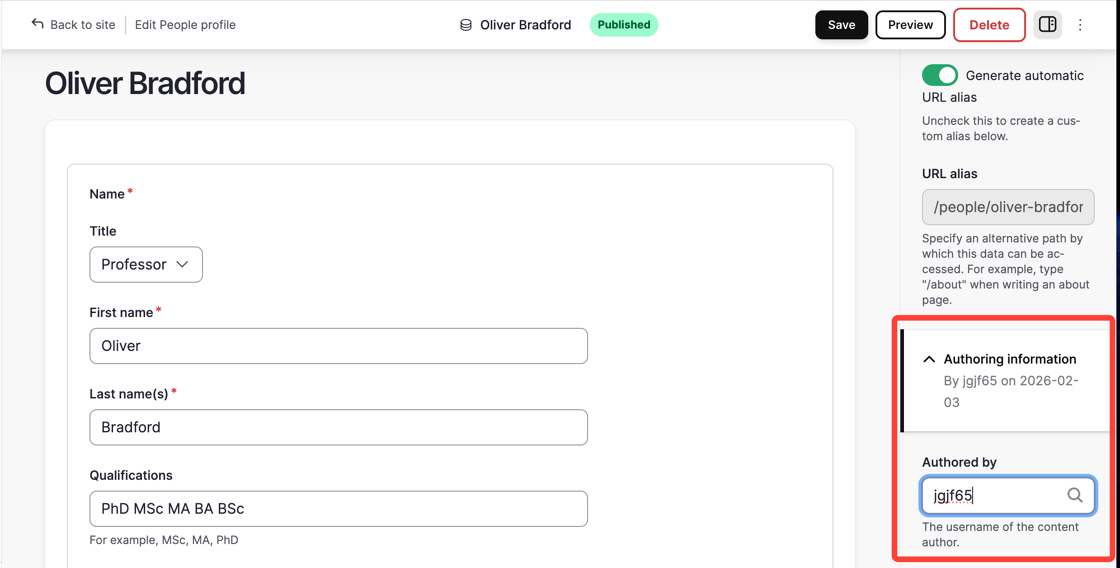
3. In the "Authored by" field, enter the person’s CRSid, then click "Save".
The individual should now be able to edit their own profile.