
Image cards
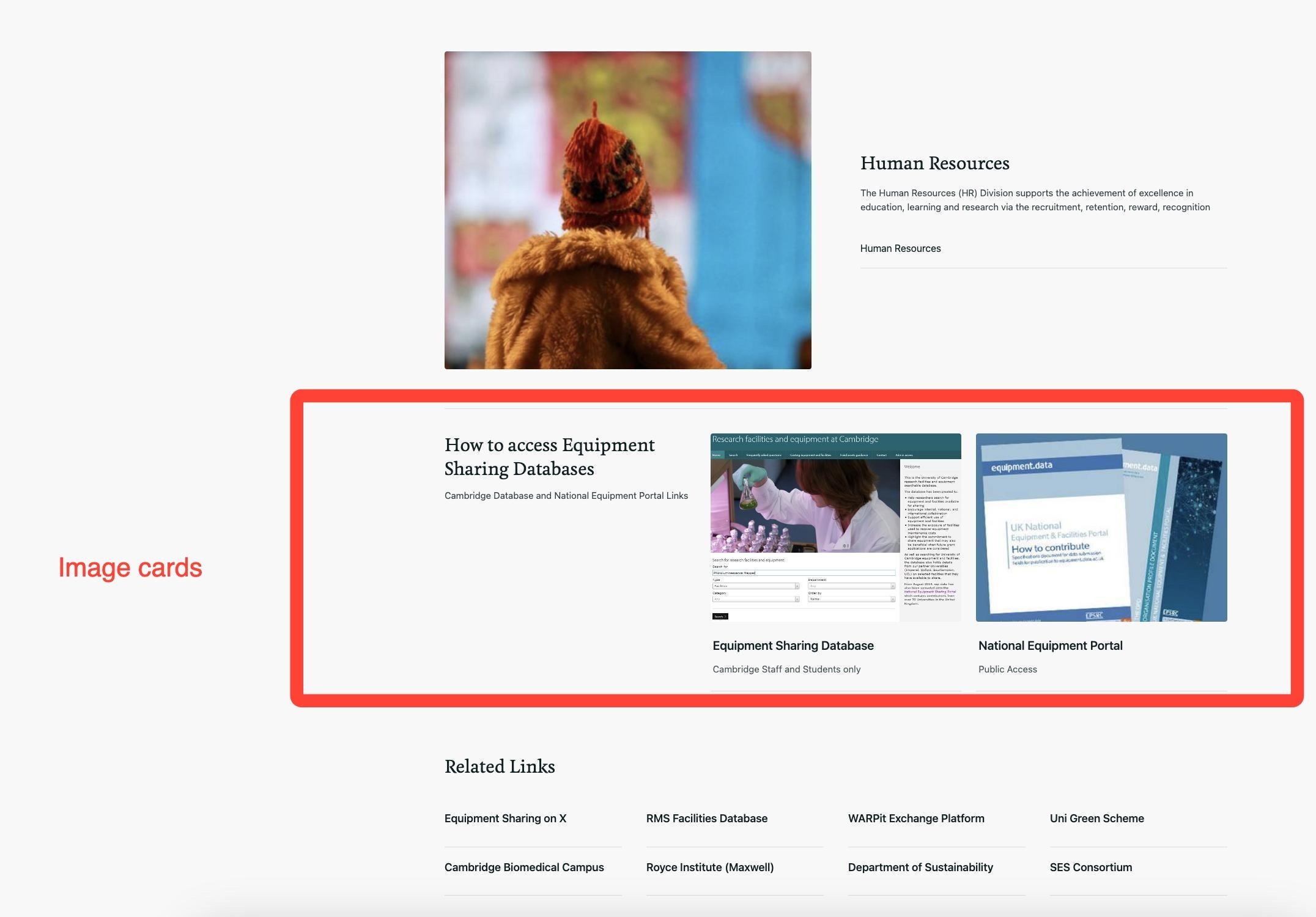
Image cards are a way to link to 2 or 3 important web pages from your homepage.
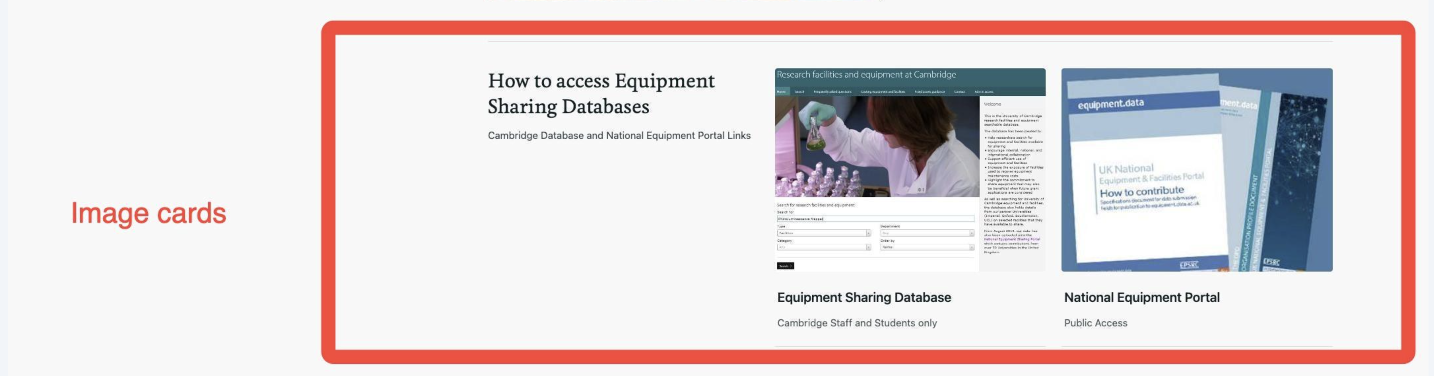
See examples of all the available content types and components on the Cambridge Web Platform showcase site.
Tips for using correctly
- follow our content standards and use the style guide when writing or editing text
- follow our guidance for using images
- do not use icons as images in image cards
- keep it simple, use plain English, don’t use acronyms, jargon or Cambridge-only terminology
- link to other web pages on your site, such as basic pages
- link to other websites only if you are certain information is up to date and trustworthy
- start link with a verb, for example ‘find, apply, read, tell, meet, see, view, and so on
- do not use ‘click here’ or ‘more’ as links
- do not use cards to replicate the navigation
How to add this component to the page
1. One of the components you can add to the homepage are the image cards. Use this component to link to 2 or 3 web pages on your site.
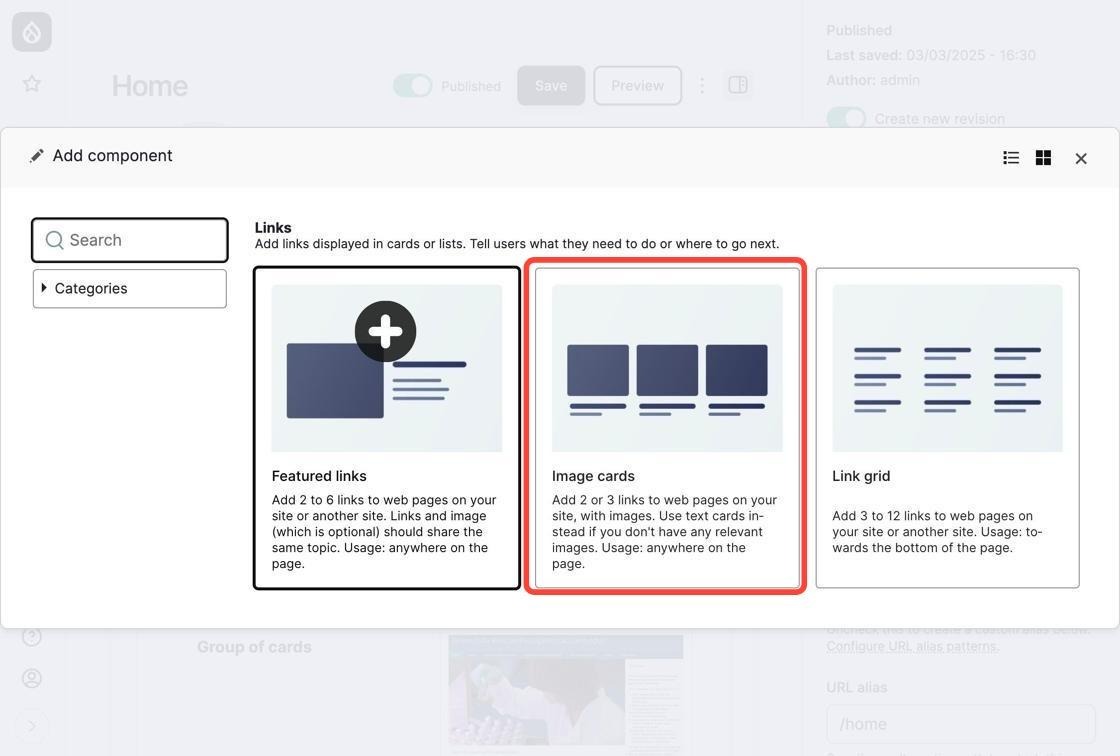
2. To add this component, navigate to the homepage and select "Edit".
Select "+ Add" button in the Main Content section and then click on "Image cards".
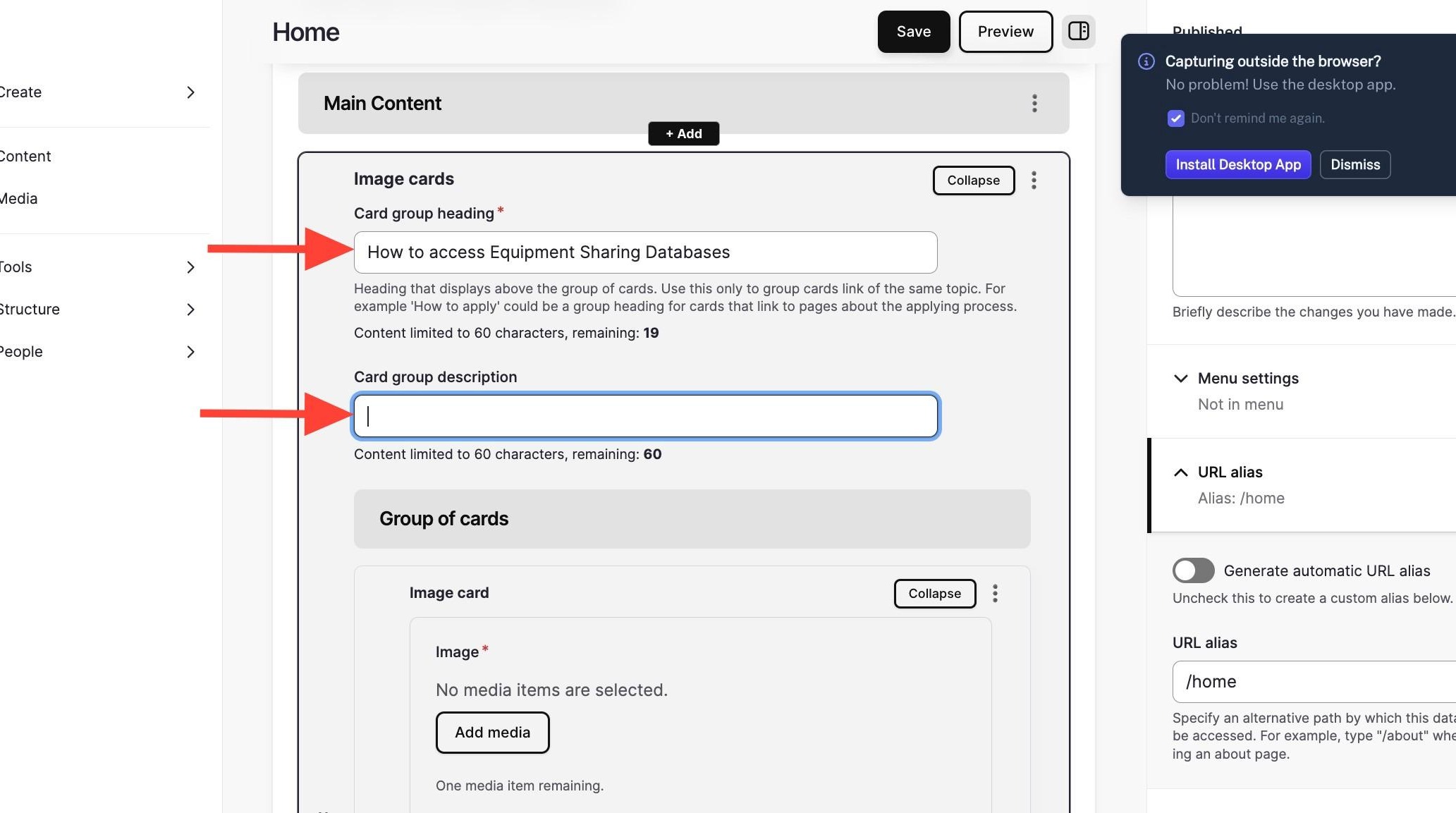
3. Enter a "Card group heading". This displays next to the group of cards if you're using 2 cards or above the cards if you're using 3. Use this to group links to pages on similar topic.
Enter a "Card group description" if you want to include an optional sentence below the card group heading.
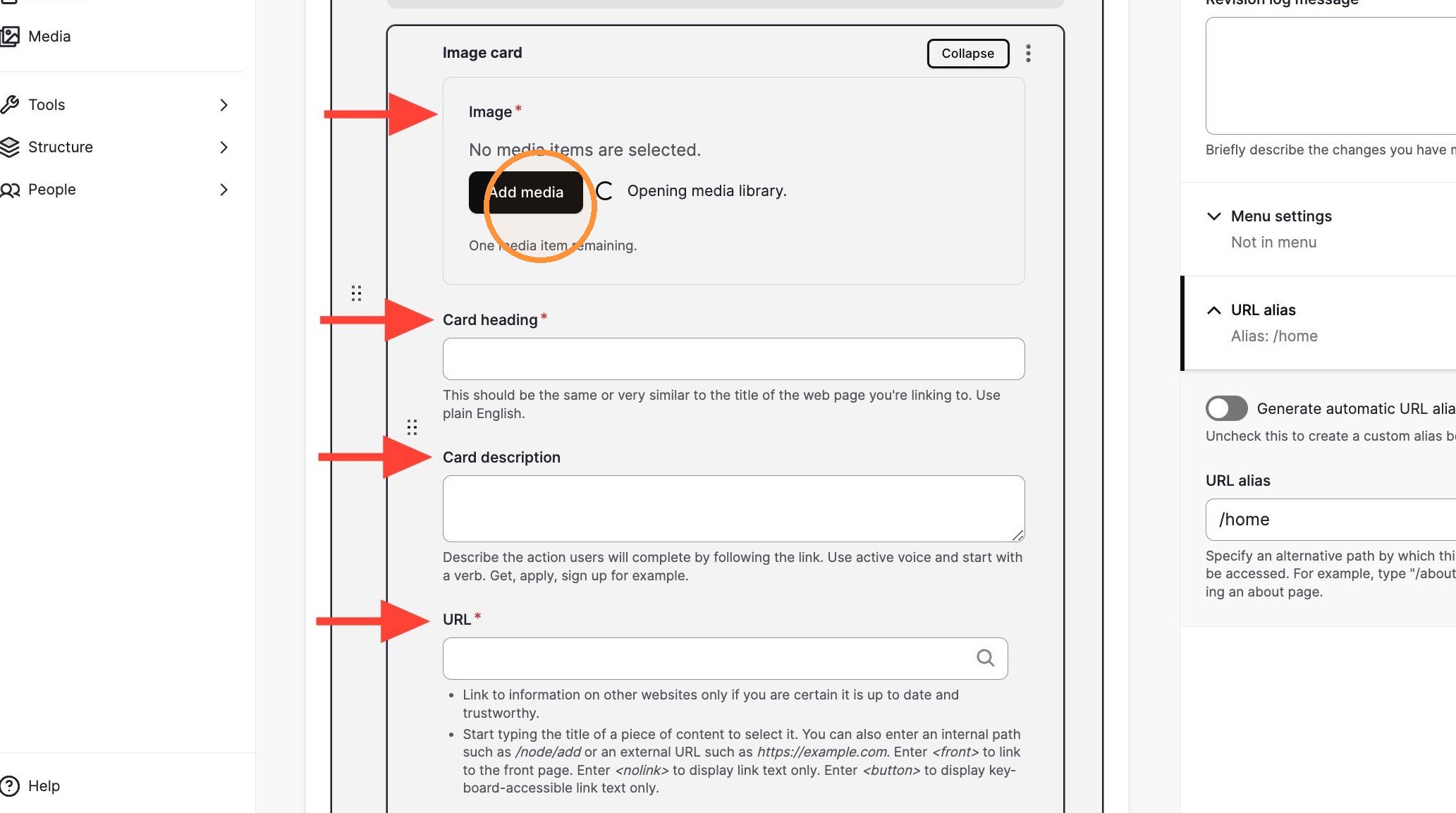
4. Every card needs an image, heading and URL. A card description is optional.
To add an image, click "Add media".
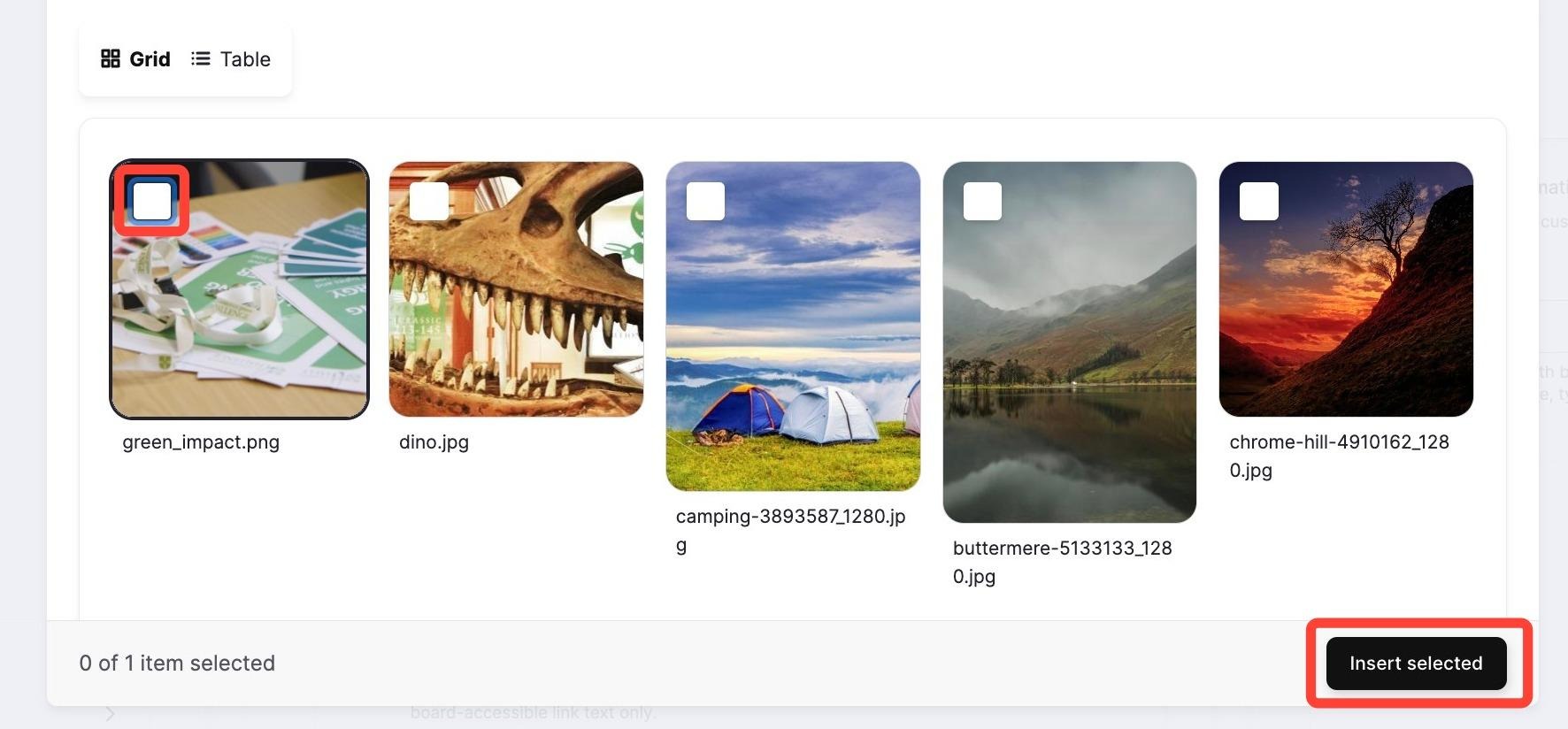
5. You can either use an image from the library or upload a new one.
Select an existing image from the grid below then click "Insert selected".
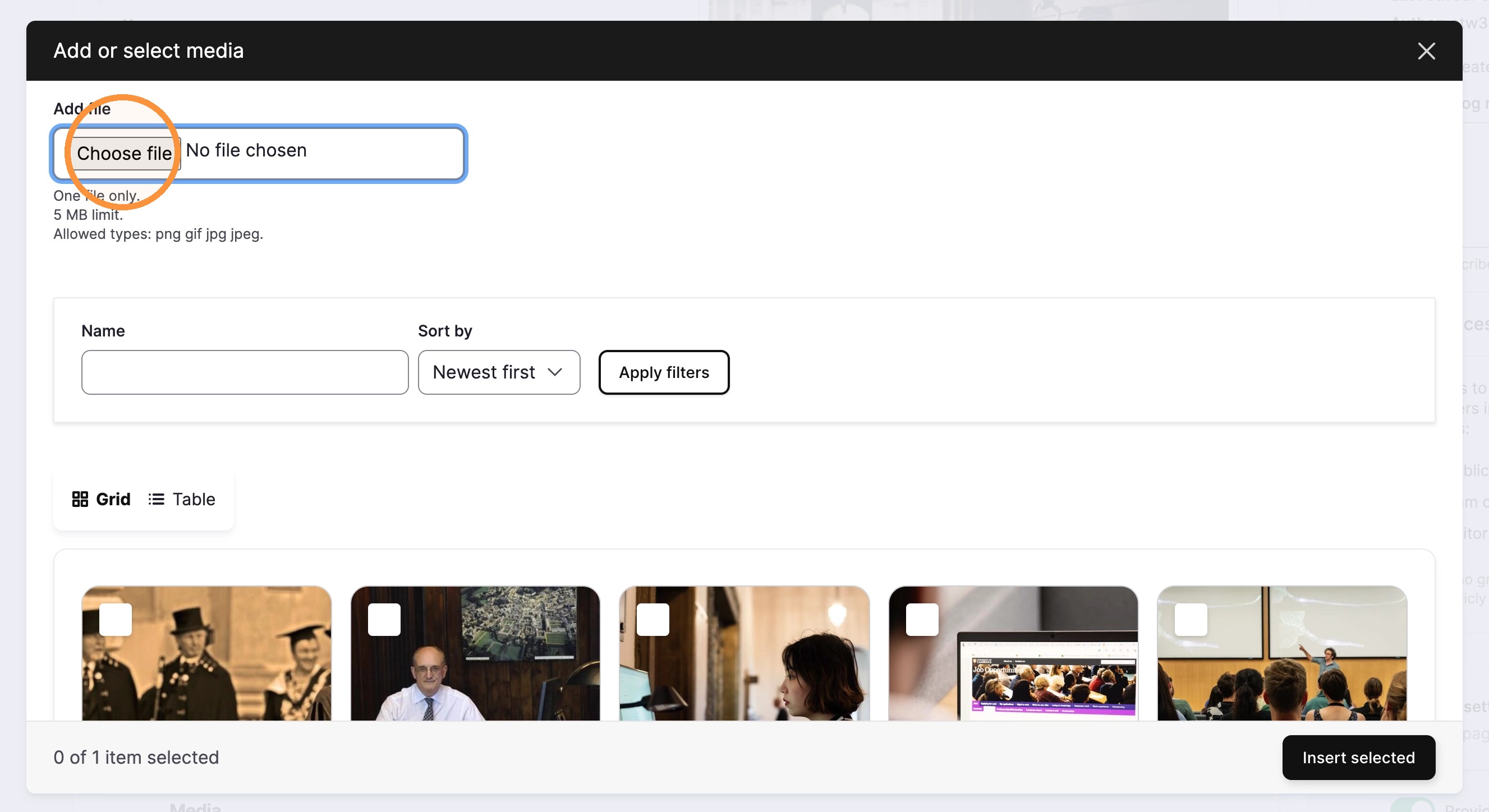
6. If you decide to upload a new image, select "Choose file".
University life images should reflect the diversity of our staff and students. Recommended image sizes: 1200 x 900 px (minimum 411 x 308 px).
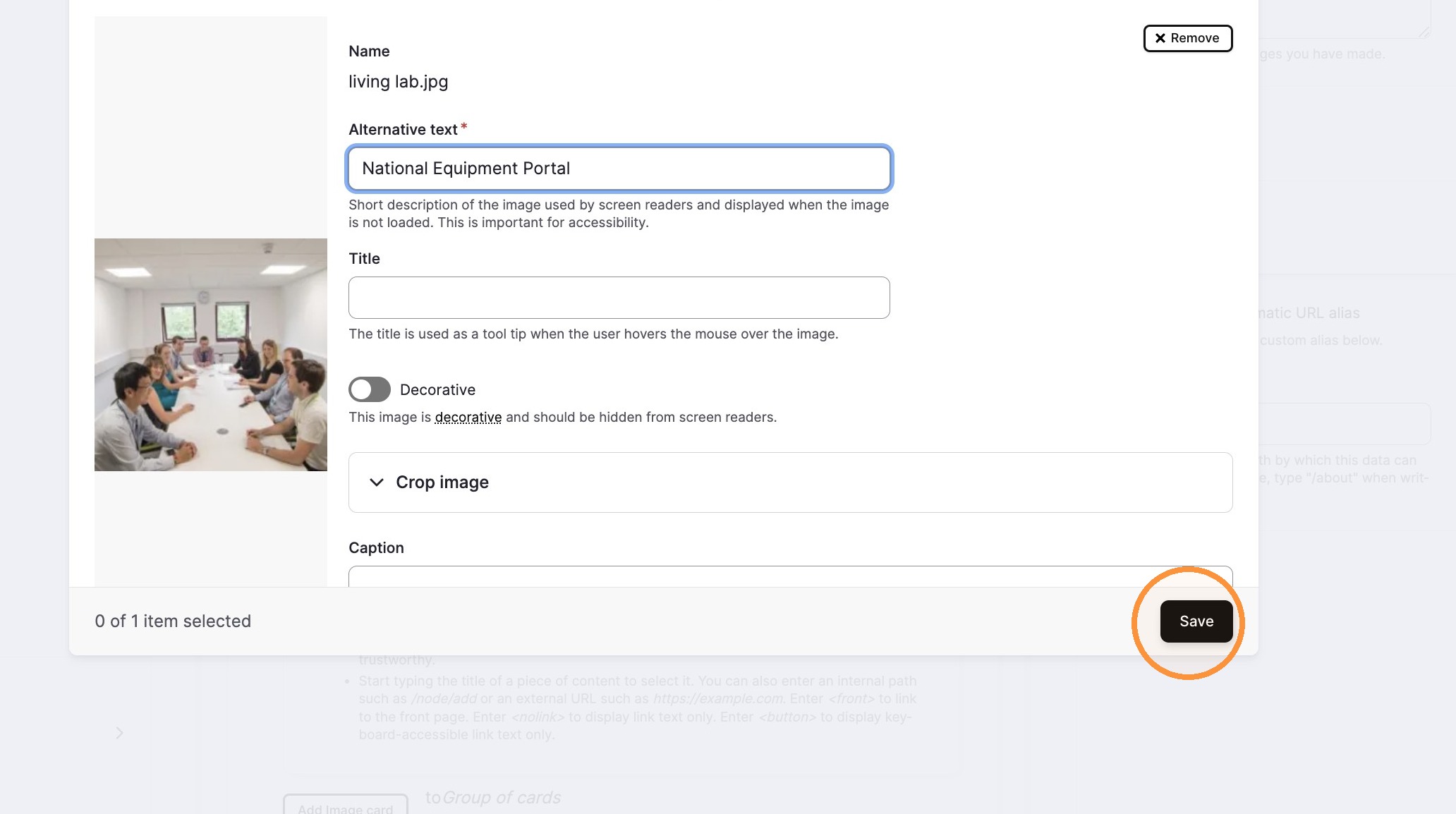
7. Upload the image.
Add alternative text if the image conveys additional information. If it doesn’t, mark it as Decorative using the toggle. Select "Save".
8. Add a card heading, this should be the same or very similar to the title of the page that you're linking to. It appears below the card image.
Optionally, you can add a page description.
Add the URL. Start typing the title of the page or add the full URL if you're linking to an external page.
You need at least 2 cards on the homepage. To add the second card, select "Add Image card".
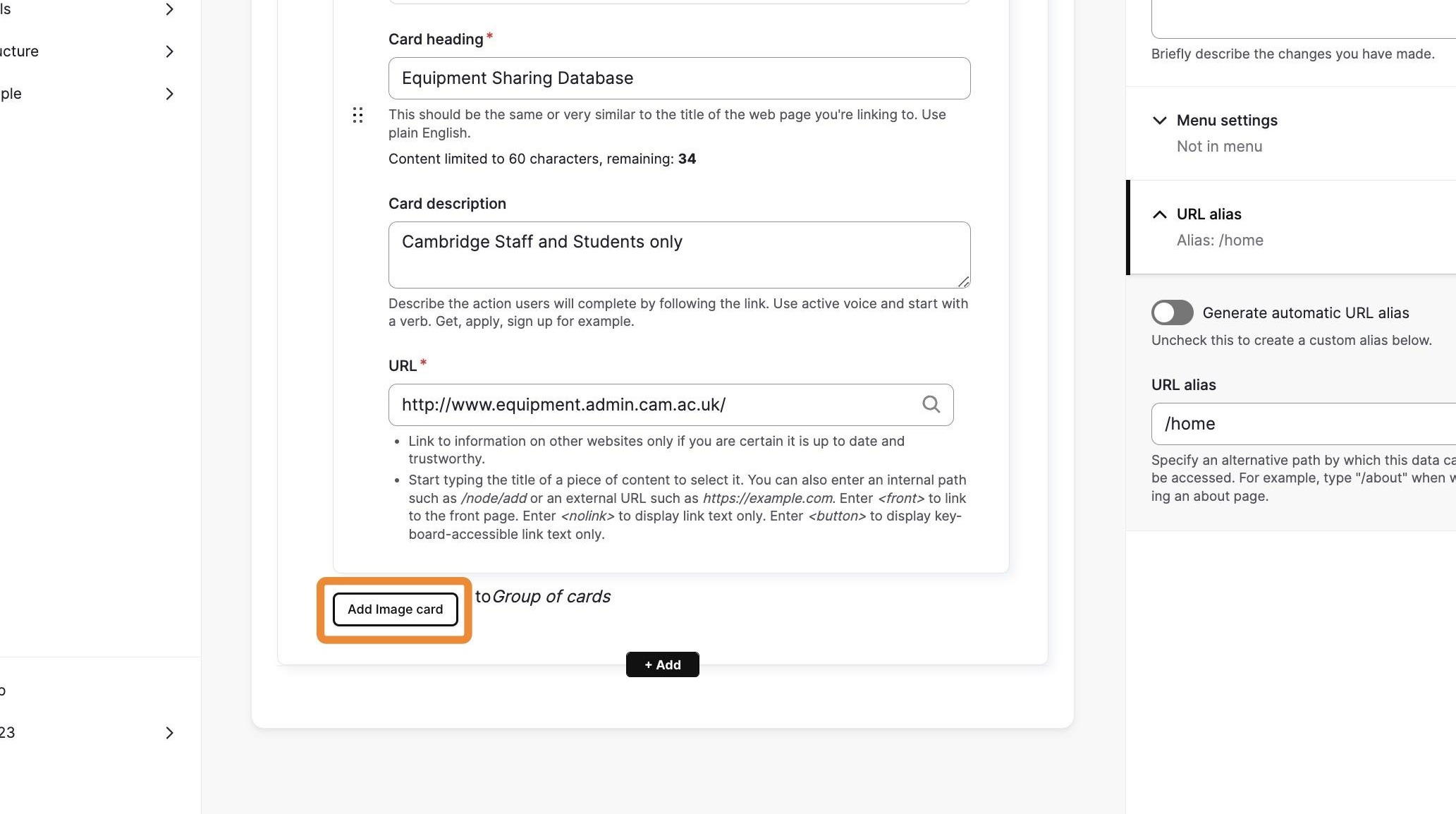
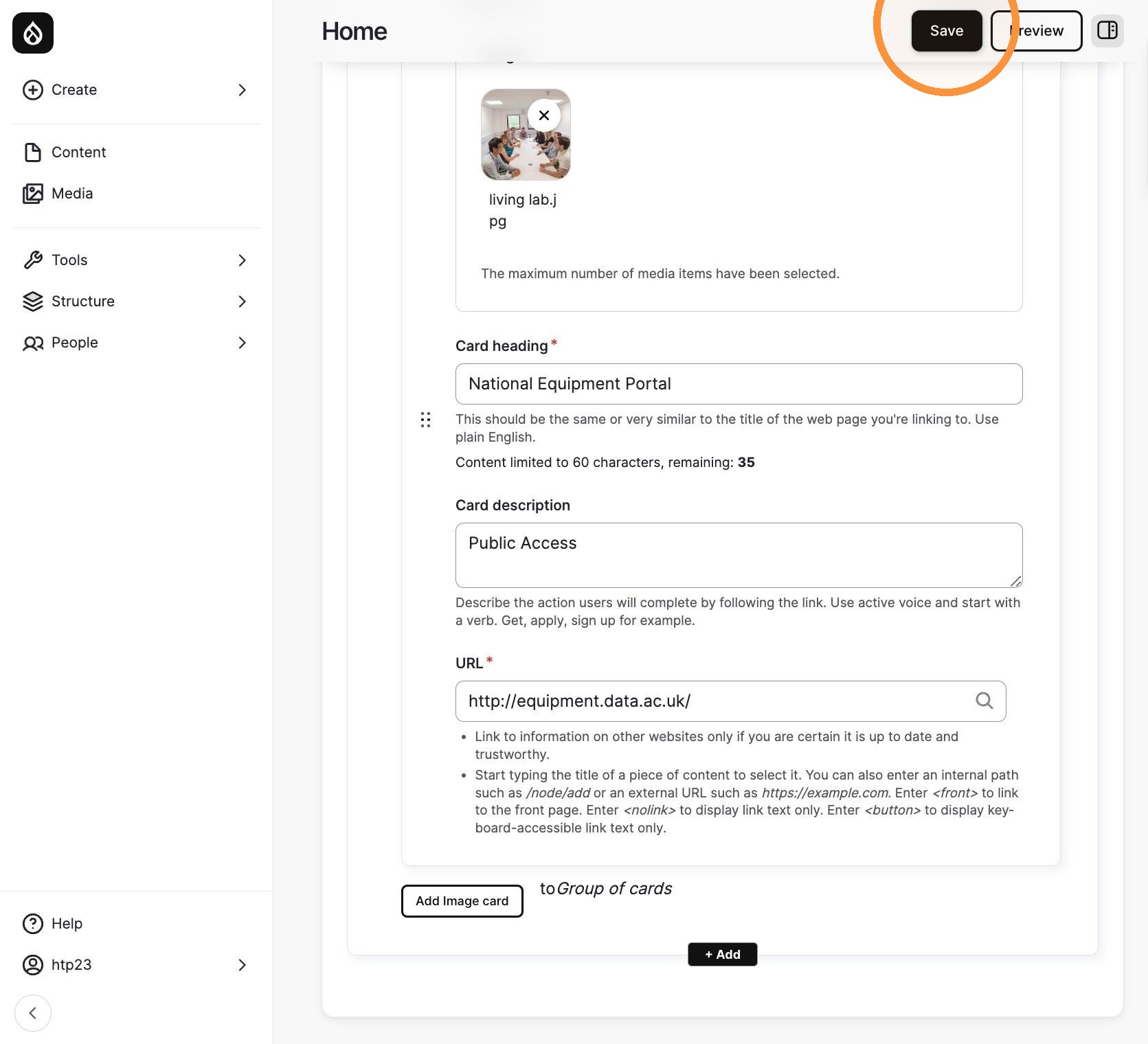
9. Create a new card by providing an image, heading, description and URL. Select "Save".
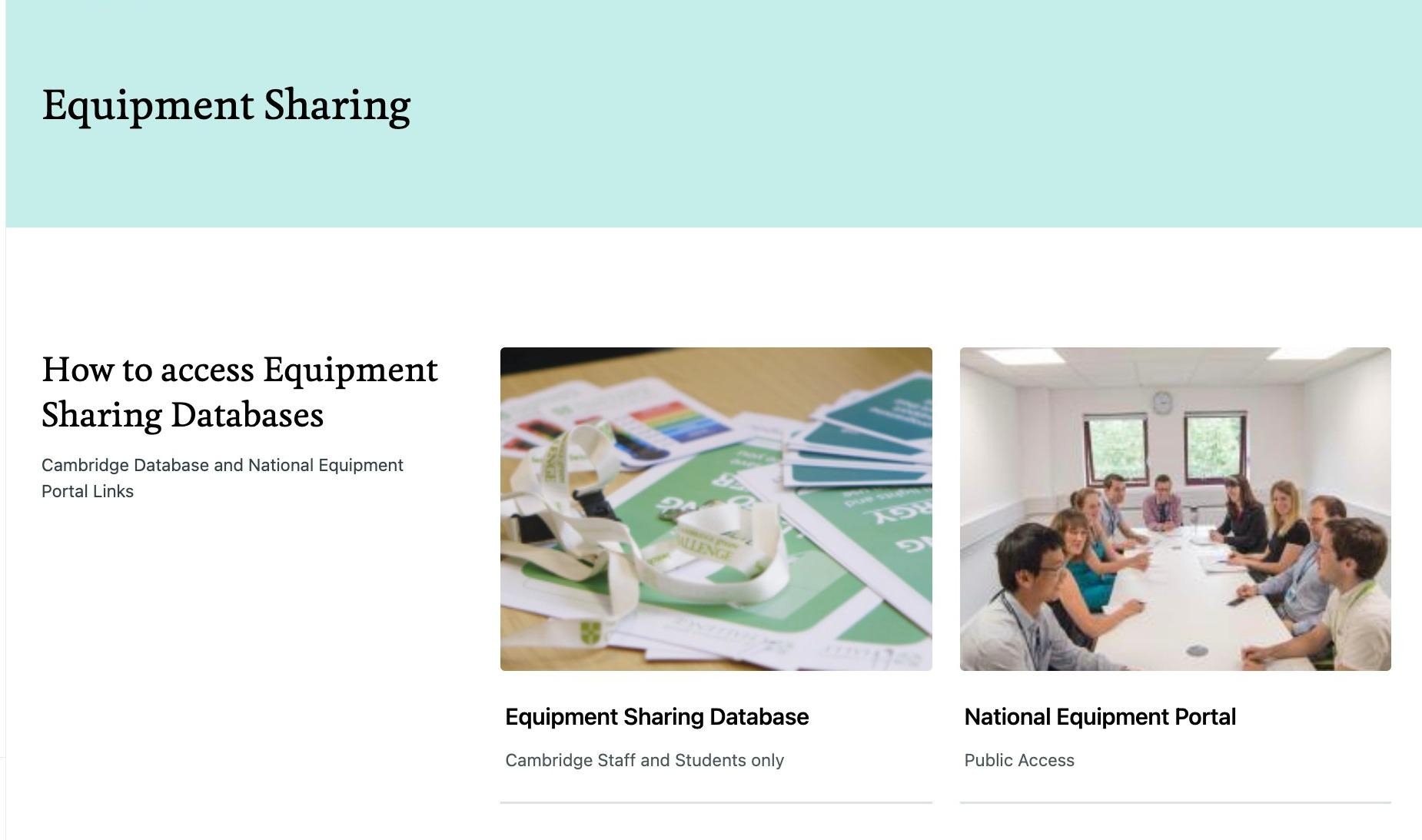
10. The Image cards will appear on the homepage.
Video instructions
Watch step-by-step video instructions on Scribe.how.