
Link list on basic pages
On every basic web page, you can include up to 6 hyperlinks in the Bottom Content section.
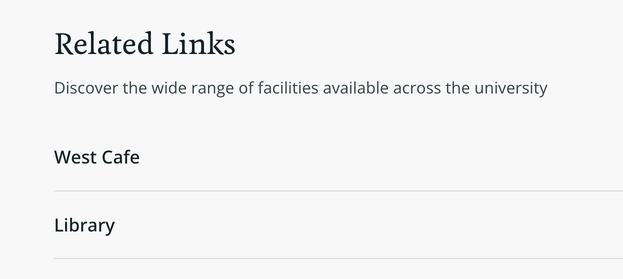
See examples of all the available content types and components on the Cambridge Web Platform showcase site.
Tips for using correctly
- add links that relate to each other or have the same topic
- follow our content standards and use the style guide when writing or editing text
- keep it simple, use plain English, don’t use acronyms, jargon or Cambridge-only terminology
- link to important web pages or forms
- link to other websites only if you are certain information is up to date and trustworthy
- start links with a verb, for example ‘find, apply, read, tell, meet, see, view, and so on
- do not use ‘click here’ or ‘more’ as links
How to add a Link list
1. Go to the relevant page and click "Edit".
2. Scroll down to the Bottom Content section, then click the "+Add" button underneath.
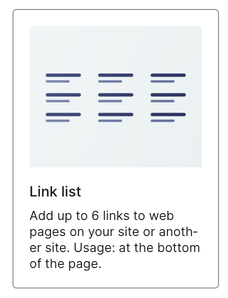
3. Select the "Link list" icon.
4. Before adding links, you can optionally add a Heading and a Description. These appear above the list of links.
For each hyperlink, you will need to provide:
- URL:
- For internal links, start typing the title and select the correct page.
- For external links, enter the full URL (starting with https://).
- Link Text: The visible label for users.
- Optional Description: Additional details that display below the hyperlink.
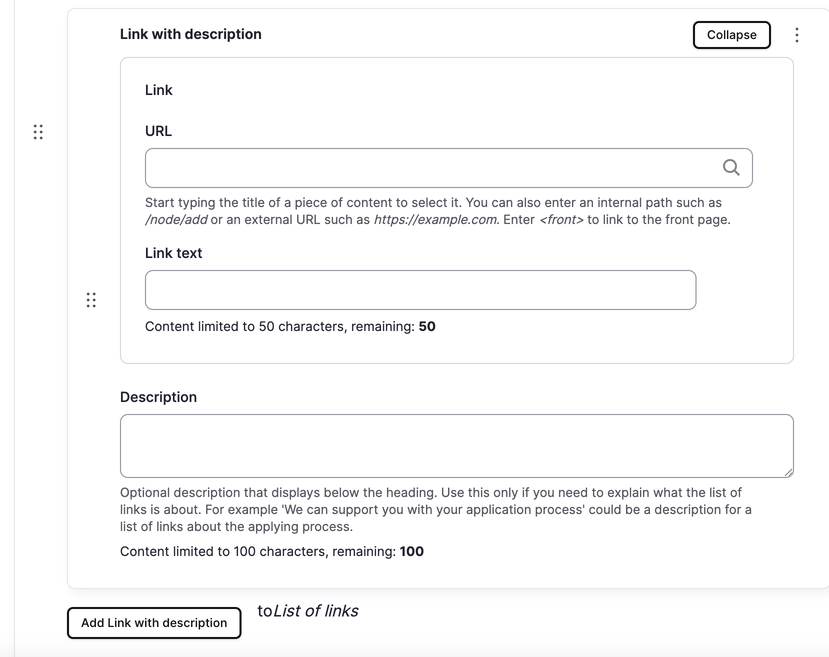
Once you have added your first link, click "Add Link with Description" to include more links. You can add up to 6 hyperlinks.
When you have finished, save your page.