
News articles
All content on news articles must meet content standards and follow the style guide.
See examples of all the available content types and components on the Cambridge Web Platform showcase site.
Show News article listing page in the main menu
All published News articles on your site are automatically listed at the /news URL. For example: https://blendedlearning.cam.ac.uk/news
If the News link is not visible in your site's main horizontal navigation, you can enable it:
- Go to "Structure" in the admin toolbar. Select "Menus", then click on "Main menu".
- Find the News item in the list and tick the checkbox under the "Enabled" column.
- Click "Save" to apply the changes.
This ensures your visitors can easily find all News articles from the main navigation.
How to create a news article
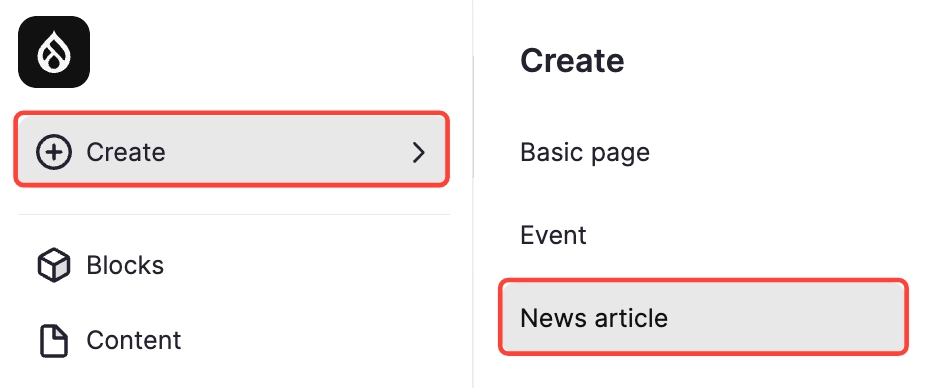
1. To create a news article, hover over "Create" in the admin menu and select "News article".
2. Add a title and meta description that will appear in search engine results.
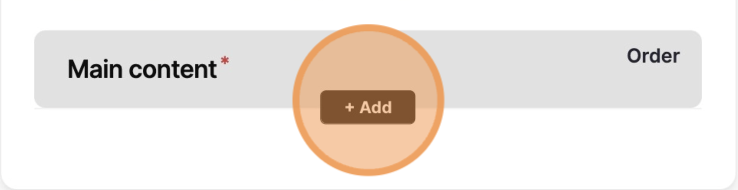
3. Add components to the Main content. To add components to the Main content, click the "+ Add" button.
In this section you can add:
4. Add content at the bottom of the article. To add components at the bottom of your article, click the "+ Add" button underneath the Bottom content section.

In this section, you can add:
- Link list - to add up to 6 hyperlinks you want to signpost users to.
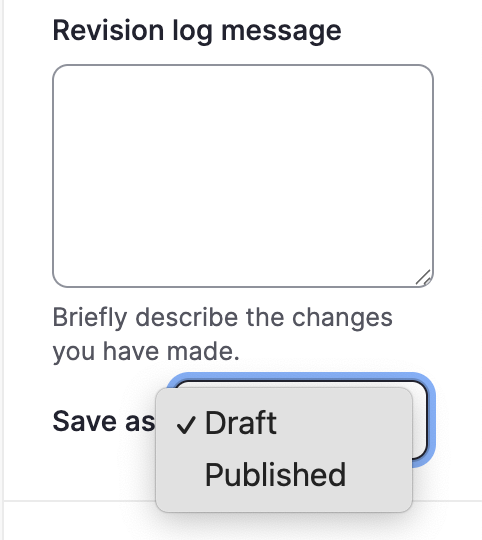
5. Publish or create a draft. Decide whether you want to save your news article as a draft or as a published version.
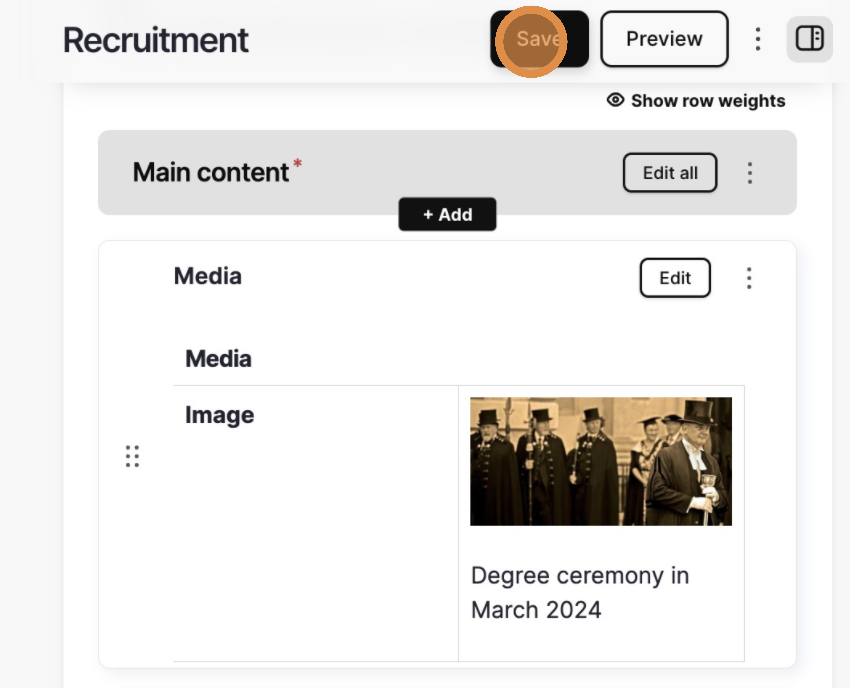
6. When your news article is ready, click the "Save" button. You will find it at the top of the page.
You cannot add individual news articles to the main menu. They are accessed via the News listing page for consistency across all websites on the Cambridge Web Platform.
You may choose to display a list of recently published news articles on your homepage. You must have at least six published news articles on your site for the list to display correctly.