
Text
Use this to add text (either by typing or by copying and pasting) to the page.
You can style the text using options in the toolbar. Hover over each item in the toolbar to get more information about what it does.
See examples of all the available content types and components on the Cambridge Web Platform showcase site.
Where to use this component
Anywhere on the page, on these pages:
Tips for using this correctly
- Follow our content standards and use the style guide when writing or editing text.
- Don’t use jargon, acronyms, Cambridge-only terminology or your department’s name. Use plain English words instead.
- Check readability is grade 8 or below in the Hemingway Editor.
- Keep it short, up to 3 sentences per paragraph.
- Use H2, H3 and H4 tags for headings.
- Use bullet lists for lists, or to help break up long paragraphs.
- Use numbered lists when the order of the items is relevant.
- Start links with a verb, for example ‘find, apply, read, tell, meet, see, view, and so on.
- Do not use ‘click here’ or ‘more’ as links.
- Link to other websites only if you are certain information is up to date and trustworthy.
- Add email addresses as web links. They will be turned into a link automatically.
- If you paste text into this component all of the formatting will be automatically removed. This is deliberate to ensure text formatting is consistent and accessible.
How to add this component to the page
- Go to the page you want to edit, or the page you’ve created.
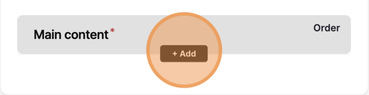
Select the ‘+ Add’ button in the Main content section.
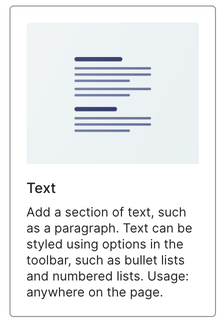
3. Select the ‘Text’ component to add it to the page.
How to edit this component
- Type or paste text into the text area.

2. Use the toolbar to format any text you’ve added.
3. To add a link, highlight text and select ‘Link’. In the URL field you can link to:
- a page on your site or a file you have uploaded, start typing the name of page or file. Then select from the list
- another website, enter the entire URL, starting with ‘https://’ press tab to the green check mark and then enter