
People Profile
What is a people profile?
A people profile is a page template that you can use to list professional information about academic staff. This includes:
- a photo
- contact details
- research interests
- teaching and supervisions
- availability
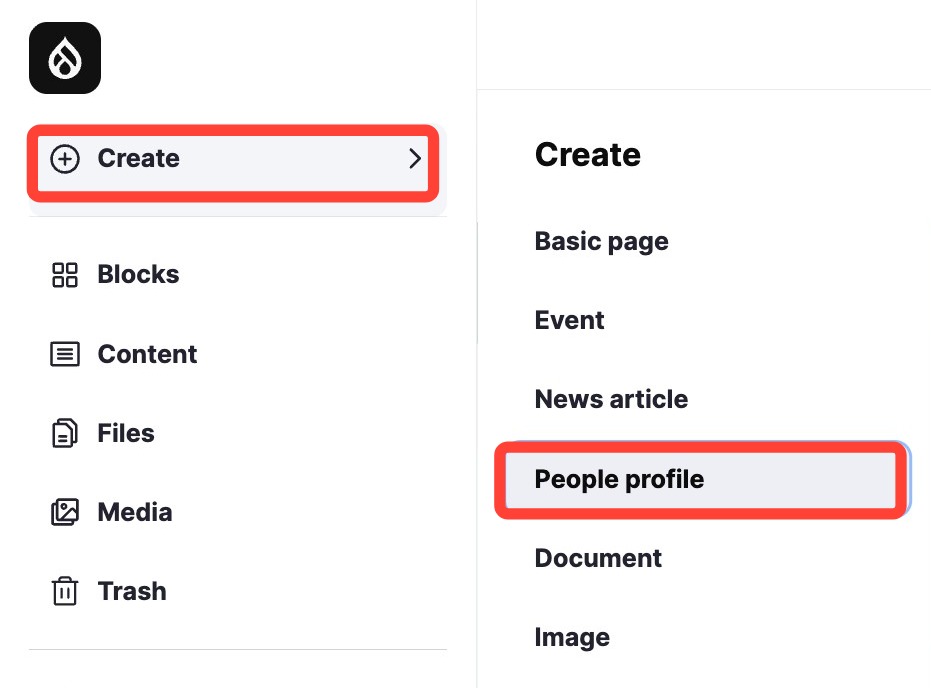
1. To create a new profile, hover over "Create" in the admin menu and select "People profile".
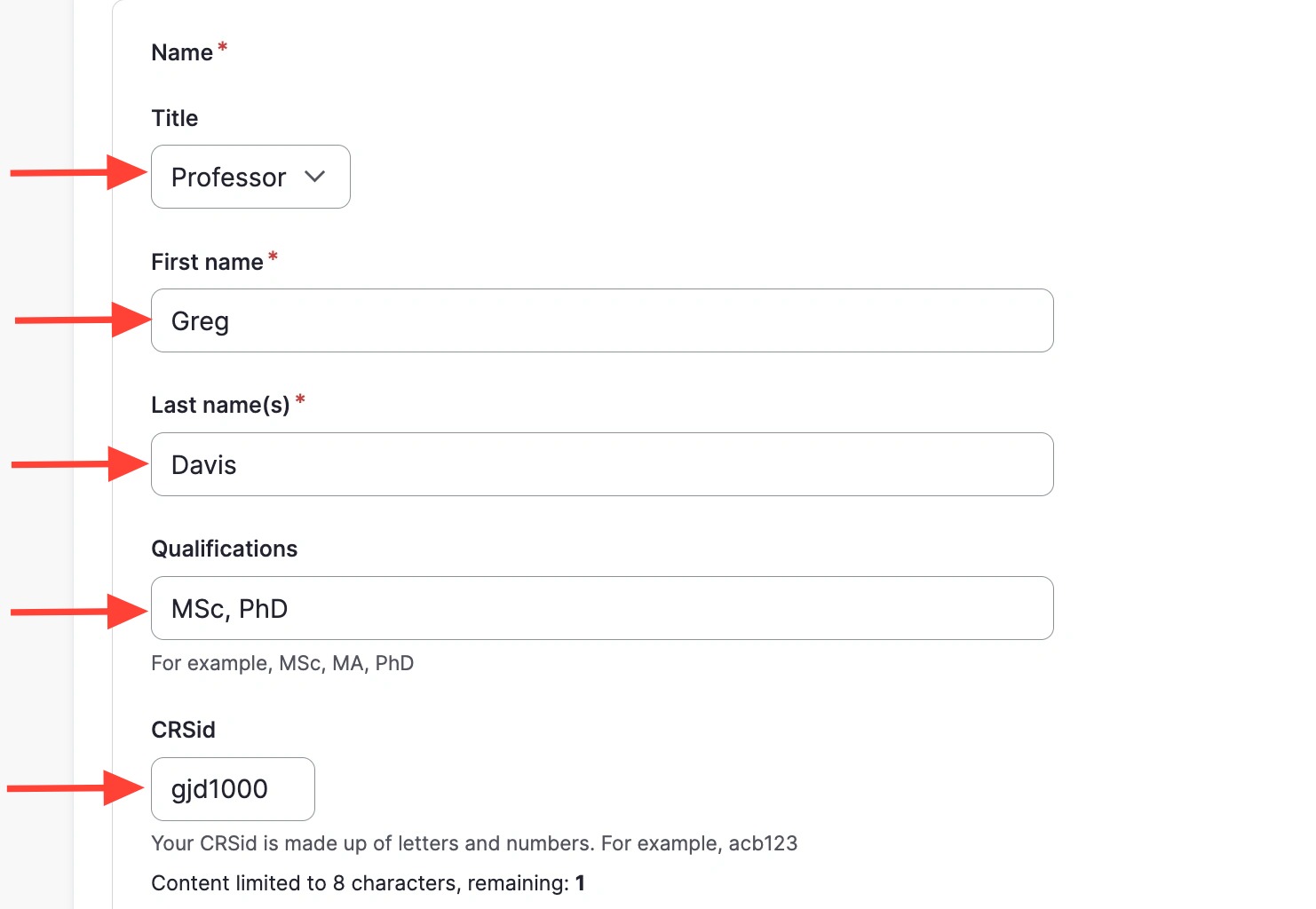
2. Enter the title, name, qualifications and CRSid
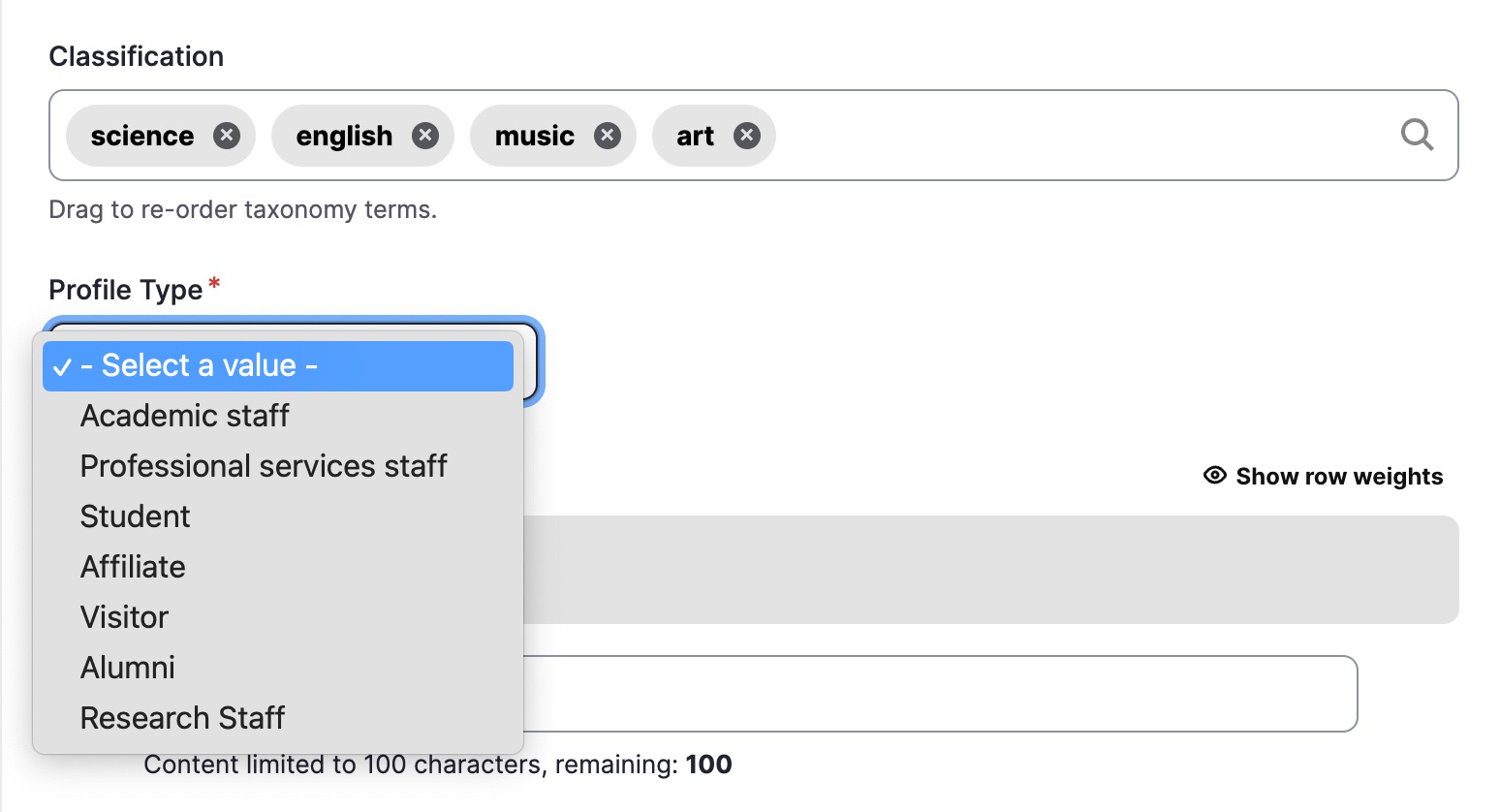
3. Select the Profile Type from the available options: Academic staff, Professional services staff, Student, Affiliate, Visitor, Alumni or Research staff.
You can also add extra classification terms to create groups. Start typing terms (existing or new). After saving, they will appear on the left side of the People page.
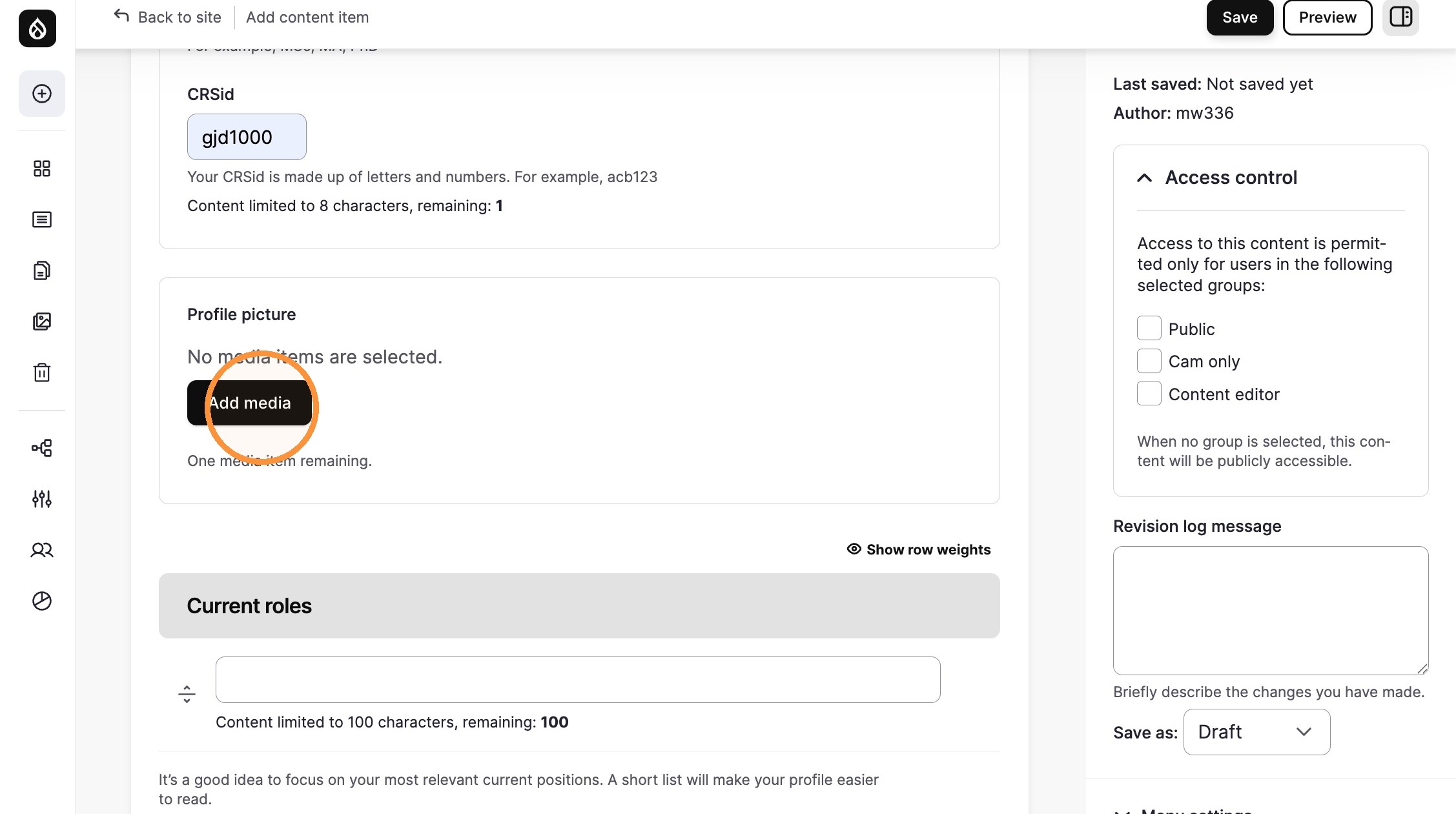
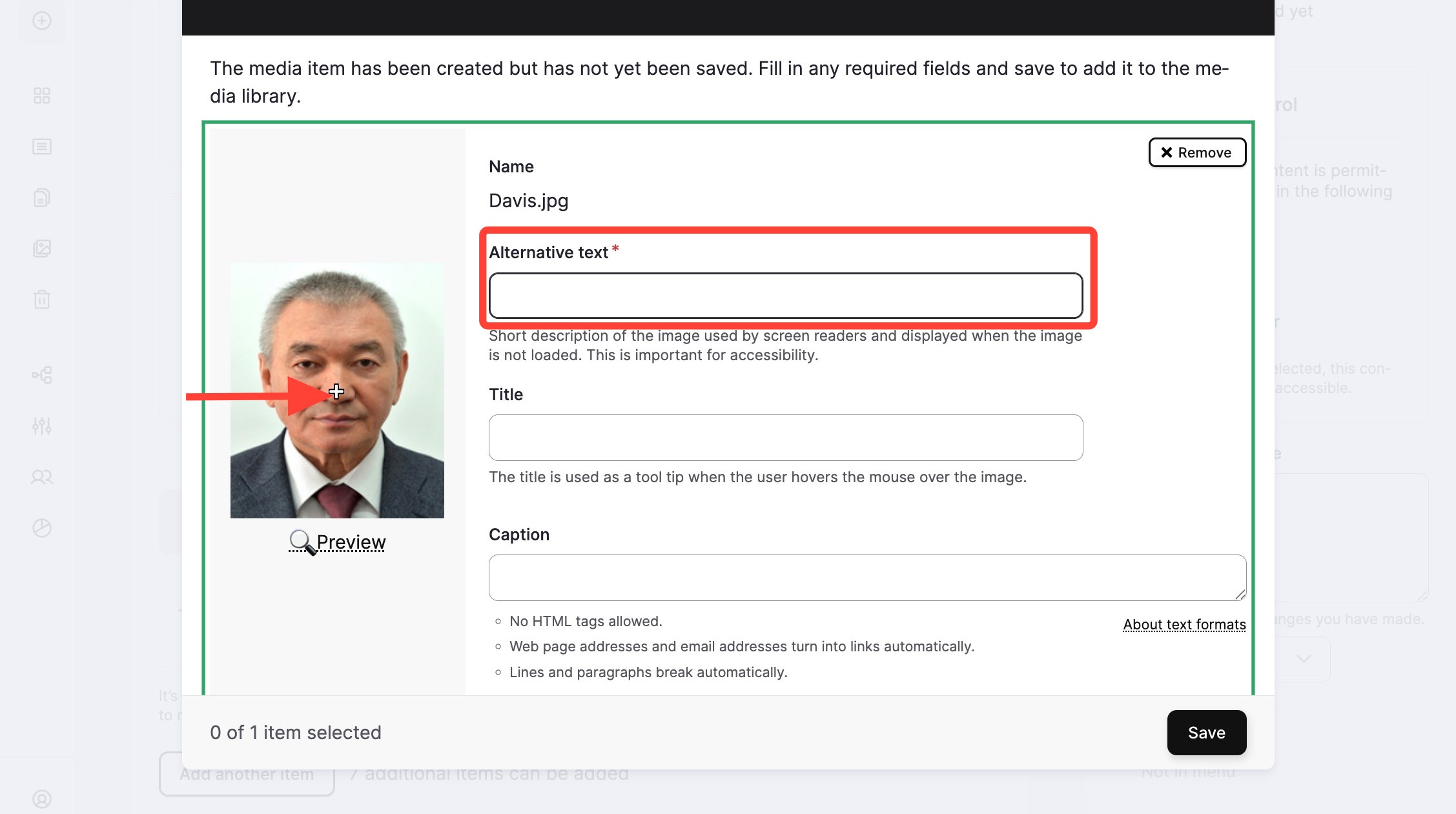
4. In order to add an image, click the "Add Media" button and then "Choose file". Select the file you would like to upload and click "Open".
5. For accessibility reasons, provide "Alternative text" (including the individual’s name would be suitable). You can reposition the focal point of the image by dragging the small cross located at its centre. Click the "Save" button then "Insert selected".
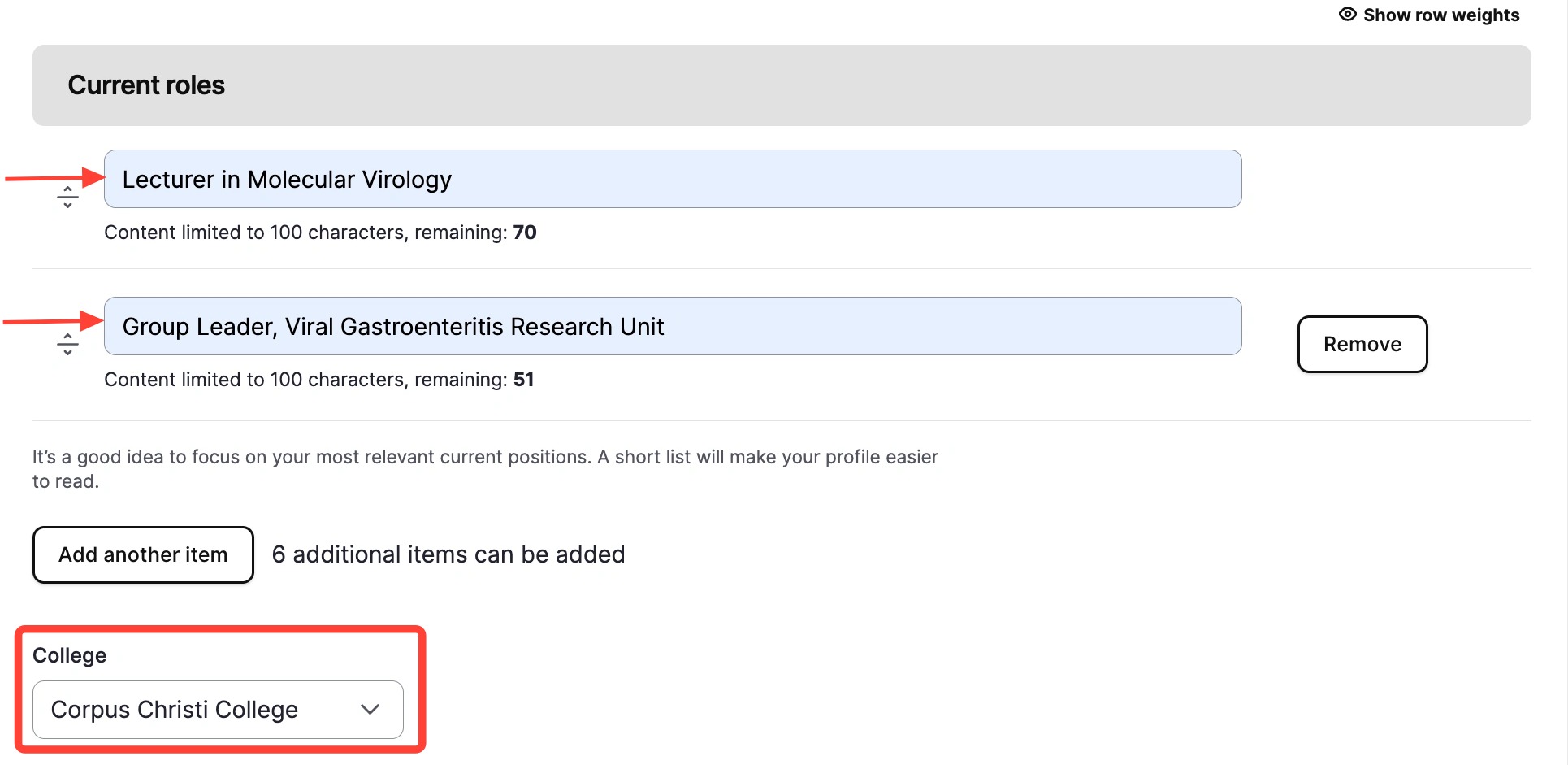
6. Enter the "Current roles". You can add additional roles using the "Add another item" button. Then select the college from the drop‑down list.
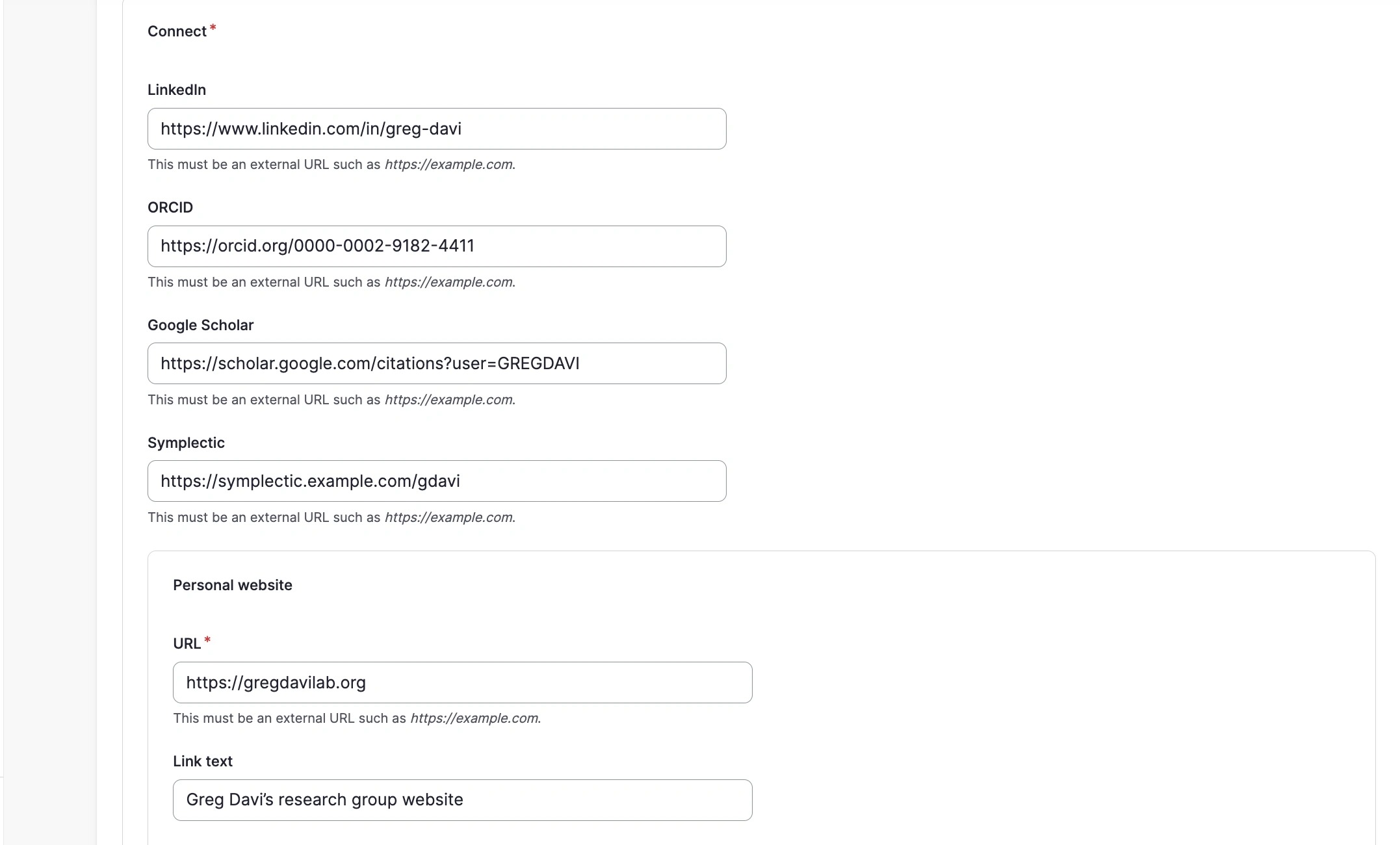
7. Provide contact details - including email, address and phone number. Then scroll down and enter the information in the "Connect" section - including LinkedIn, ORCID iD, Google Scholar, Symplectic, and a personal website link.
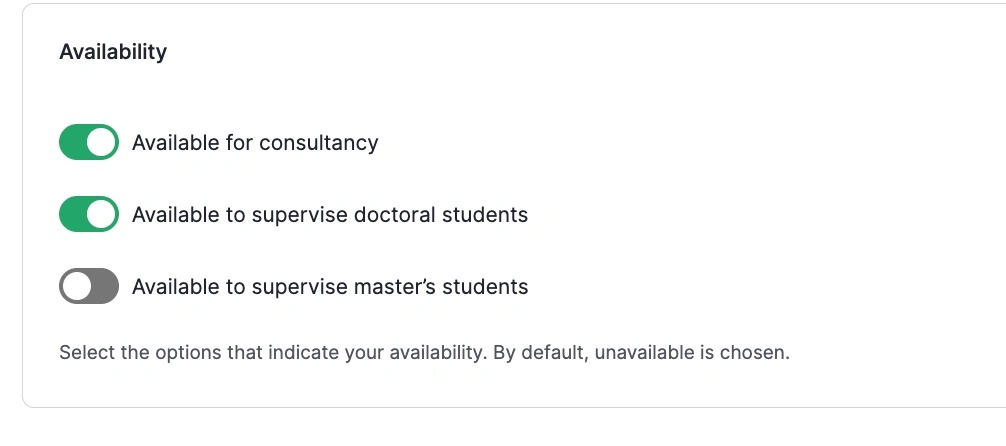
8. Select the relevant options by switching the toggles on or off to show the person’s availability.
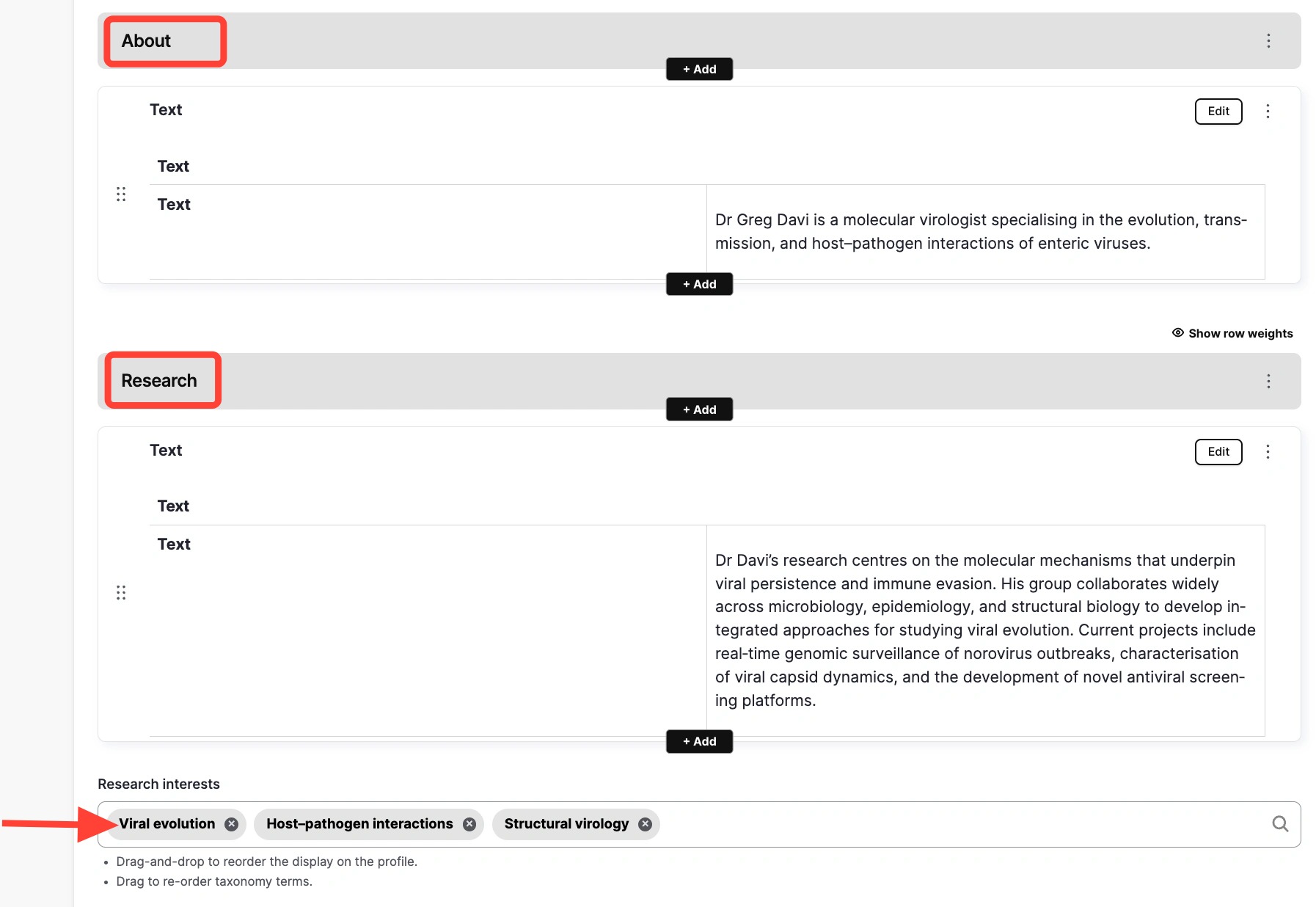
9. Add information to the "About" and "Research sections". Enter the "Research interests" by typing relevant terms.
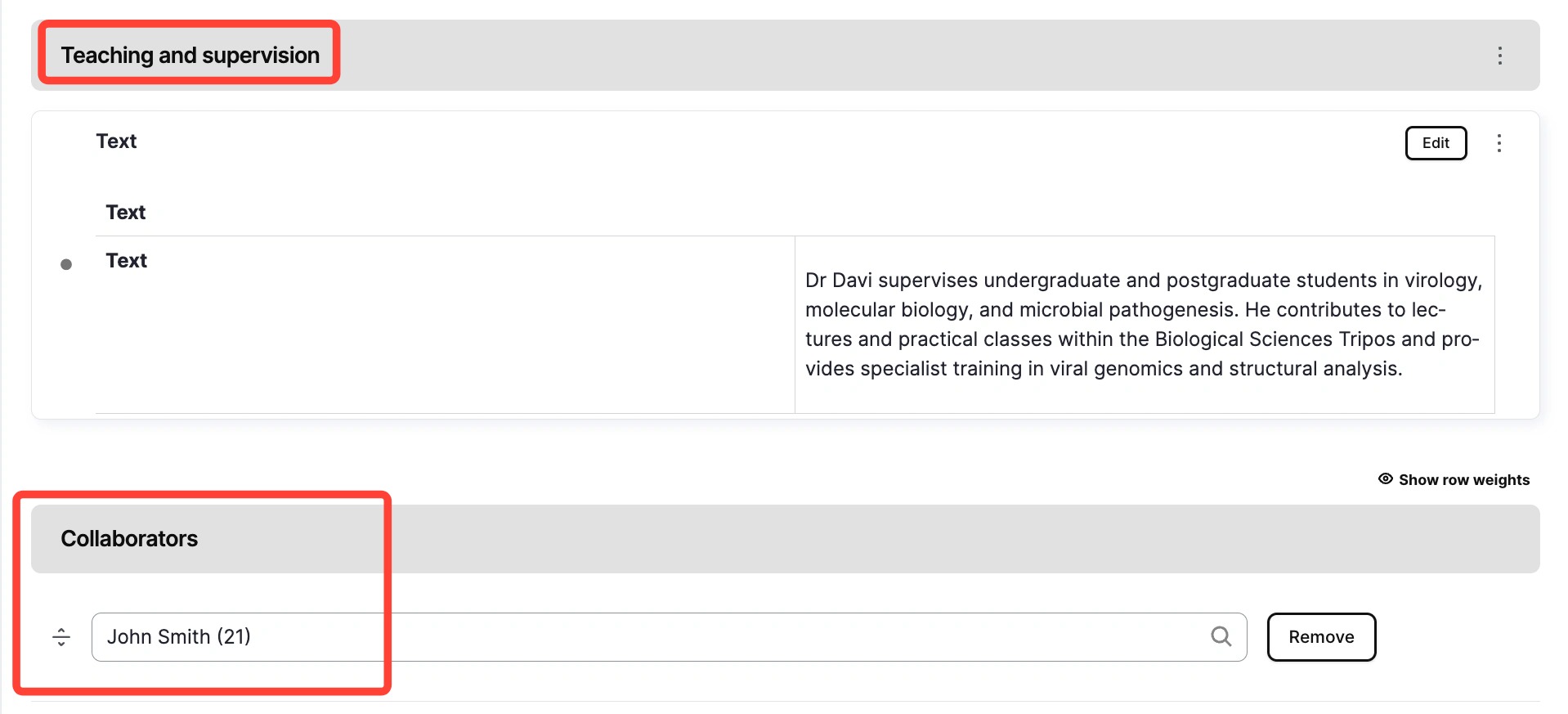
10. Enter text in the "Teaching and supervision" section. You can add collaborators if they already have existing profiles on the website. Type their name and select the correct profile from the list.
11. Publications migrated from Drupal 7 can be found in the "Legacy Publications" section but are not displayed on the profile. You can copy and paste items from here into the new Publications section above. You can add up to 10 publications and include a link to the full list of publications.

12. Decide whether you want to save your page as a draft or as a published version. Click the "Save" button, located at the top of the page.
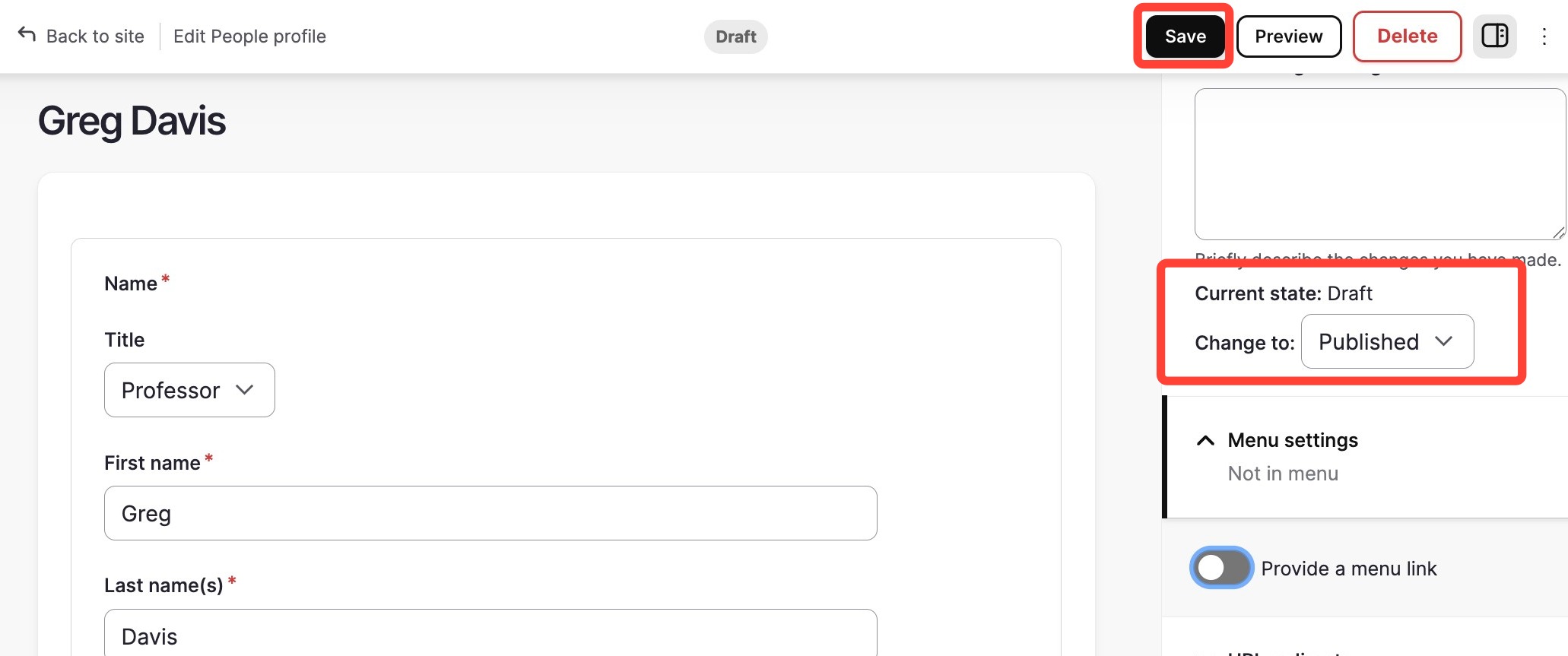
13. The new profile will be published.
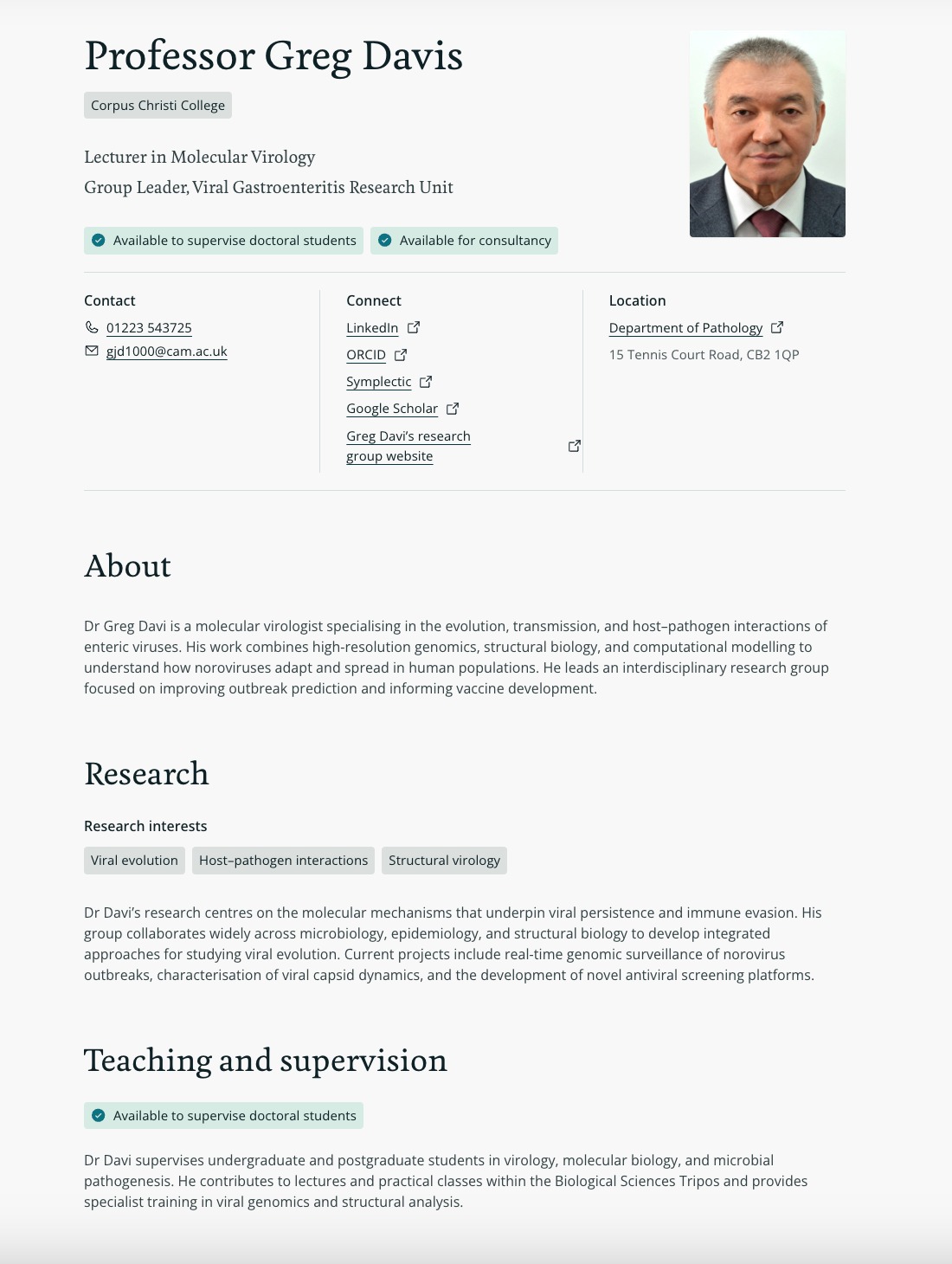
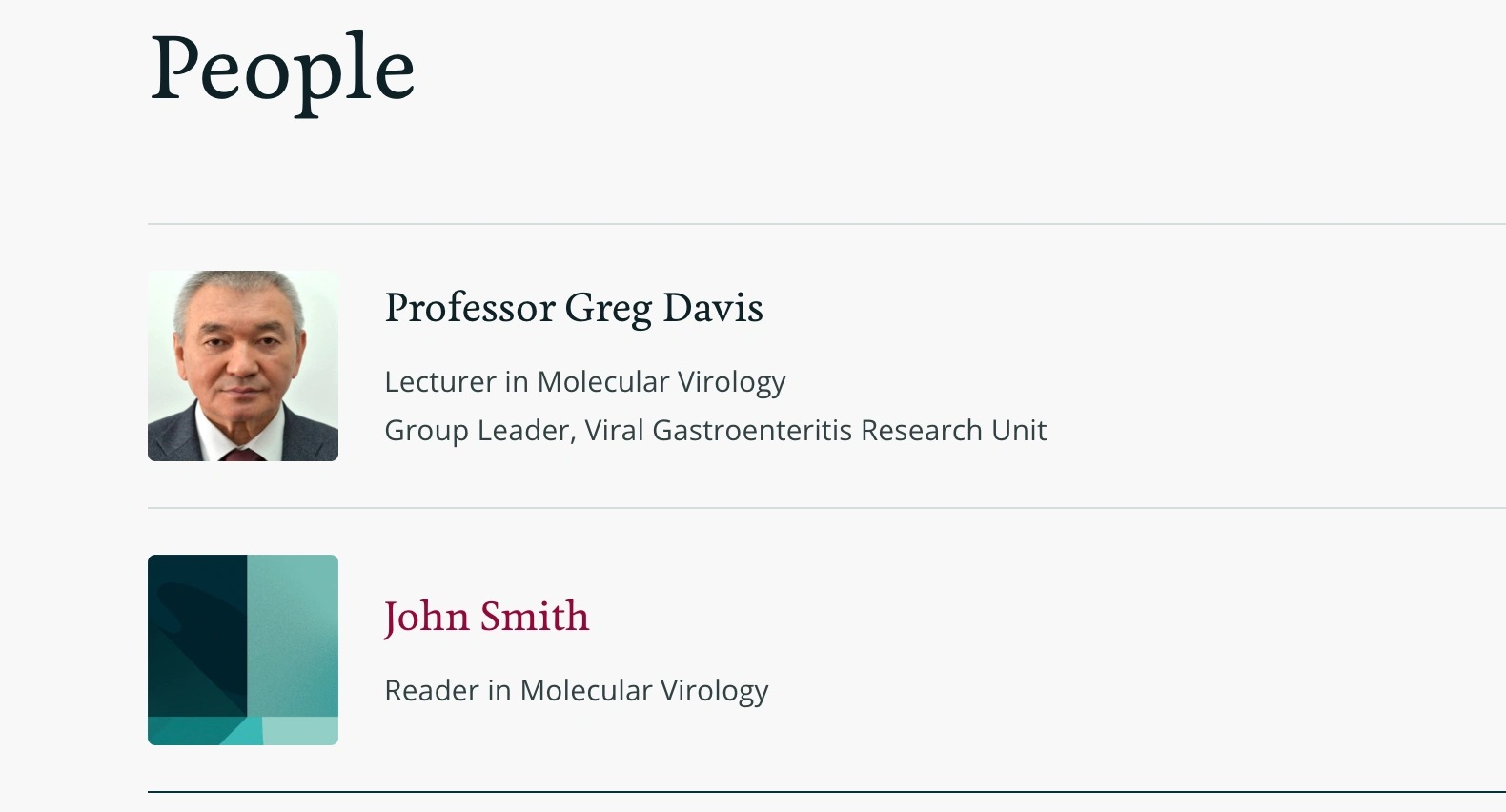
14. The new profile will be automatically added to the People list. If no profile image has been added, a generic image will be used.
How to allow users to edit their own profile?
If you would like users to be able to edit their own profiles, please follow the steps outlined in "Setting permissions to edit a profile."
Video instructions
Watch step-by-step video instructions on Scribe.how.