
Accordions
When to use accordions
Only use an accordion:
- to show an overview of multiple, related sections of content
- so users can show and hide sections that are relevant to them
- if users only need a few pieces of information on the page
When to avoid accordions
You should not use an accordion when:
- users need to see all the content on the page. Accordions hide content. They work better when users need only a few pieces of information on the page
- there is little content on the page. If you have a page where all the content is hidden behind accordions it can look empty
Instead of using an accordion it is usually better to:
- simplify and reduce the amount of content
- split the content across multiple pages
- keep the content on a single page, separated by headings
- use a list of anchor links at the start of the page to take the user to particular sections of a page
Content standards for accordions
- Make sure headings accurately reflects the content in the accordion. They should include any keywords users will be scanning for.
- Do not use more than 10 accordion sections on one page. Aim for fewer than 10 if possible.
- Include introductory text above the accordions to give users some context about the page.
See examples of all the available content types and components on the Cambridge Web Platform showcase site.
How to add accordions to the page
1. Go to the page you want to edit, or the page you have created. In the Main content section select the "+ Add" button. Choose the "Accordions" component.
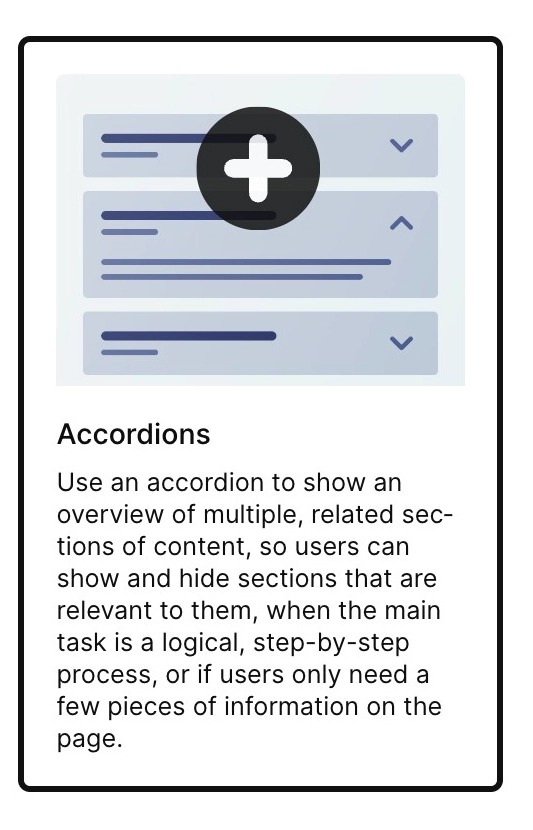
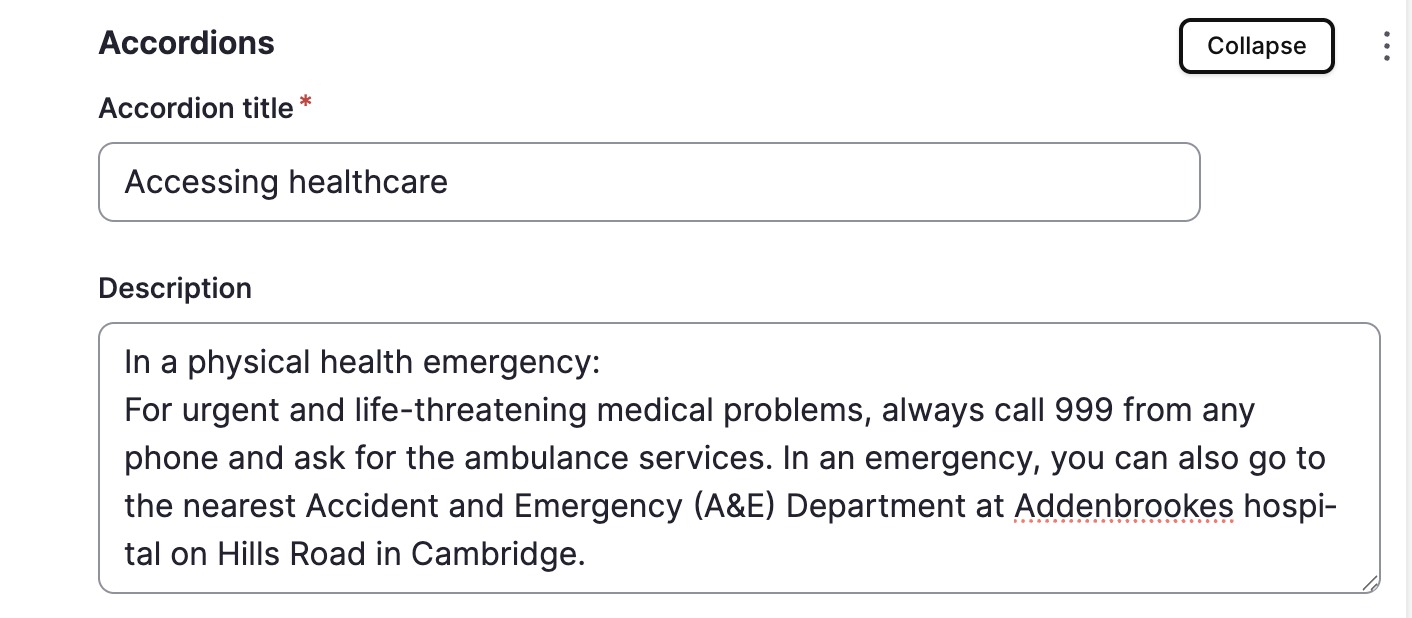
2. Add an Accordion title. Use this to group items on similar topic.
Enter a Description to include an optional sentence below the Accordion title.
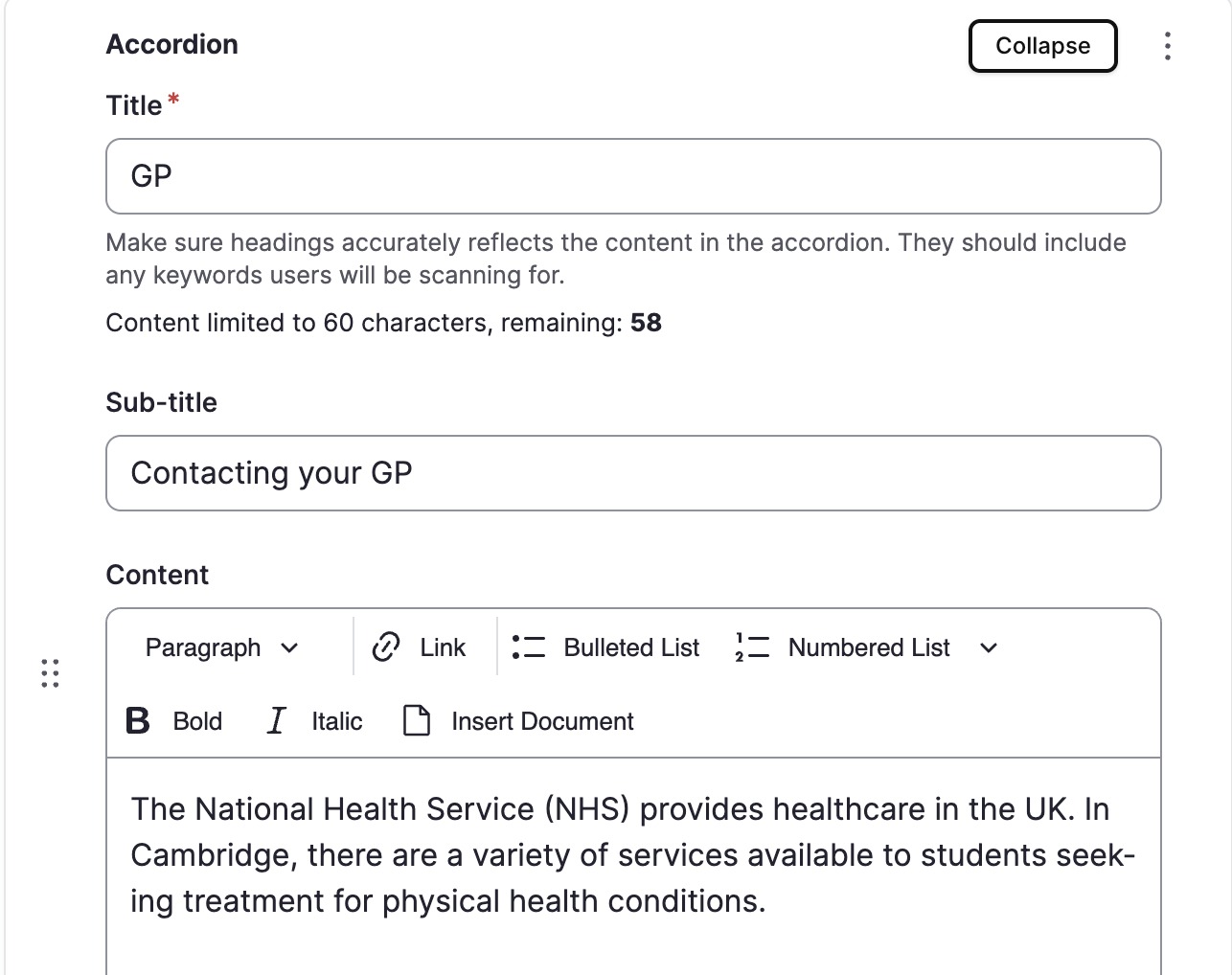
3. Scroll down to add the first accordion item. Every accordion will need a Title, an optional Sub-title and Content. You can add more accordions by clicking the "Add accordion" button.
To reorder the accordion sections, use the drag handle - the icon with six dots arranged in two vertical columns.
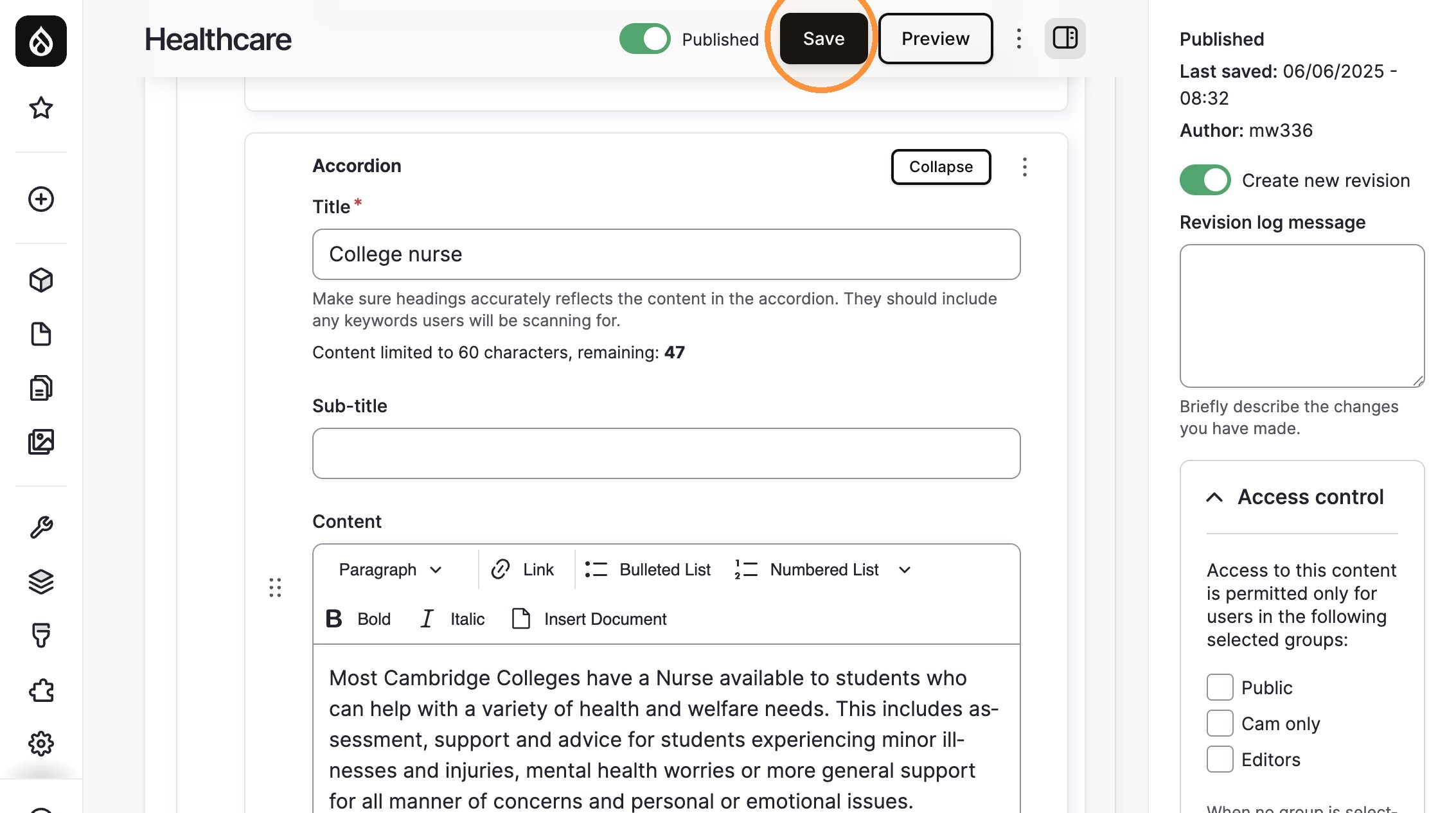
4. When all the accordions have been added, select "Save".
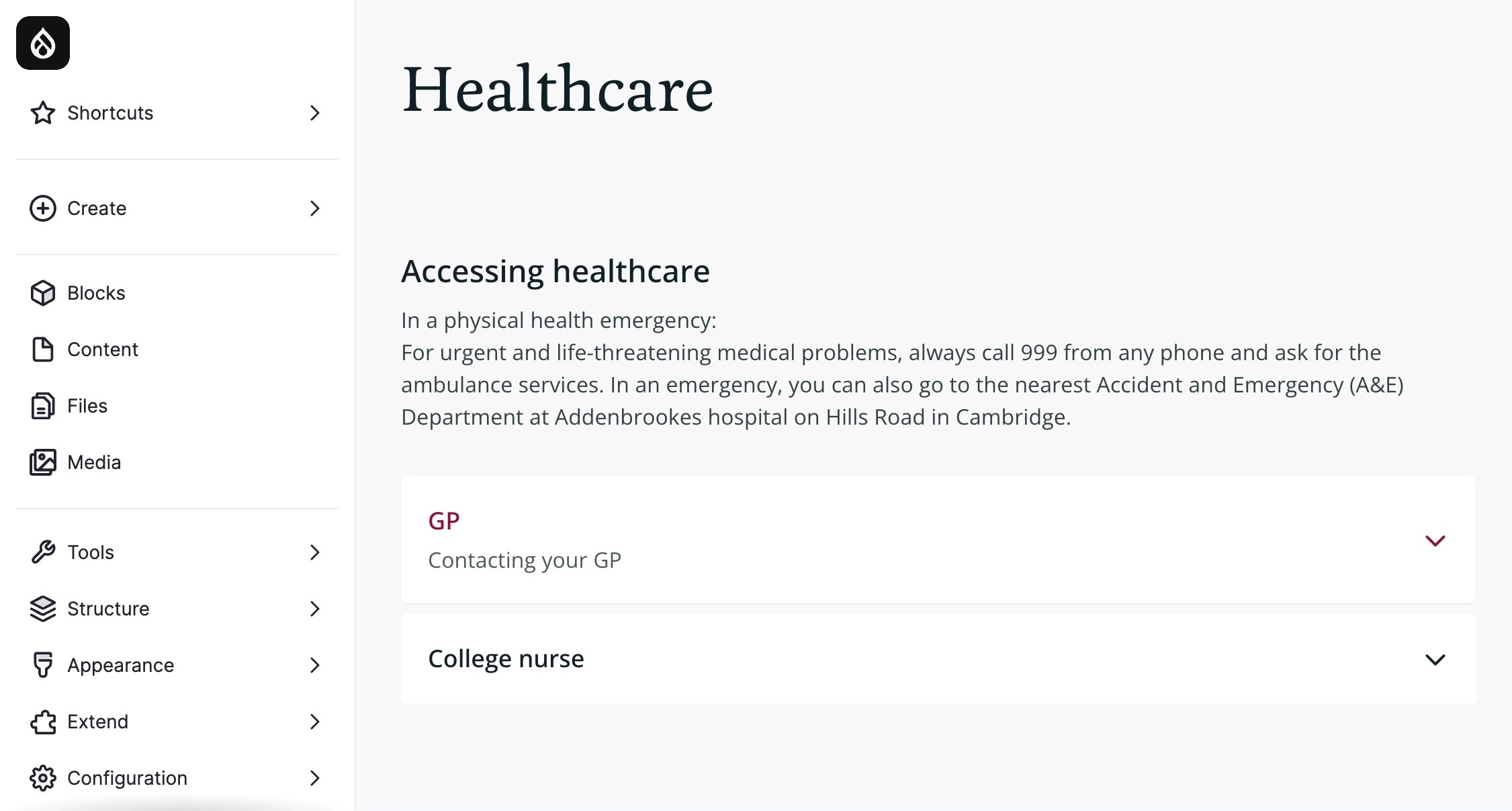
5. The Accordions component will appear on the page.
Video instructions
Watch step-by-step video instructions on Scribe.how.