
Webform
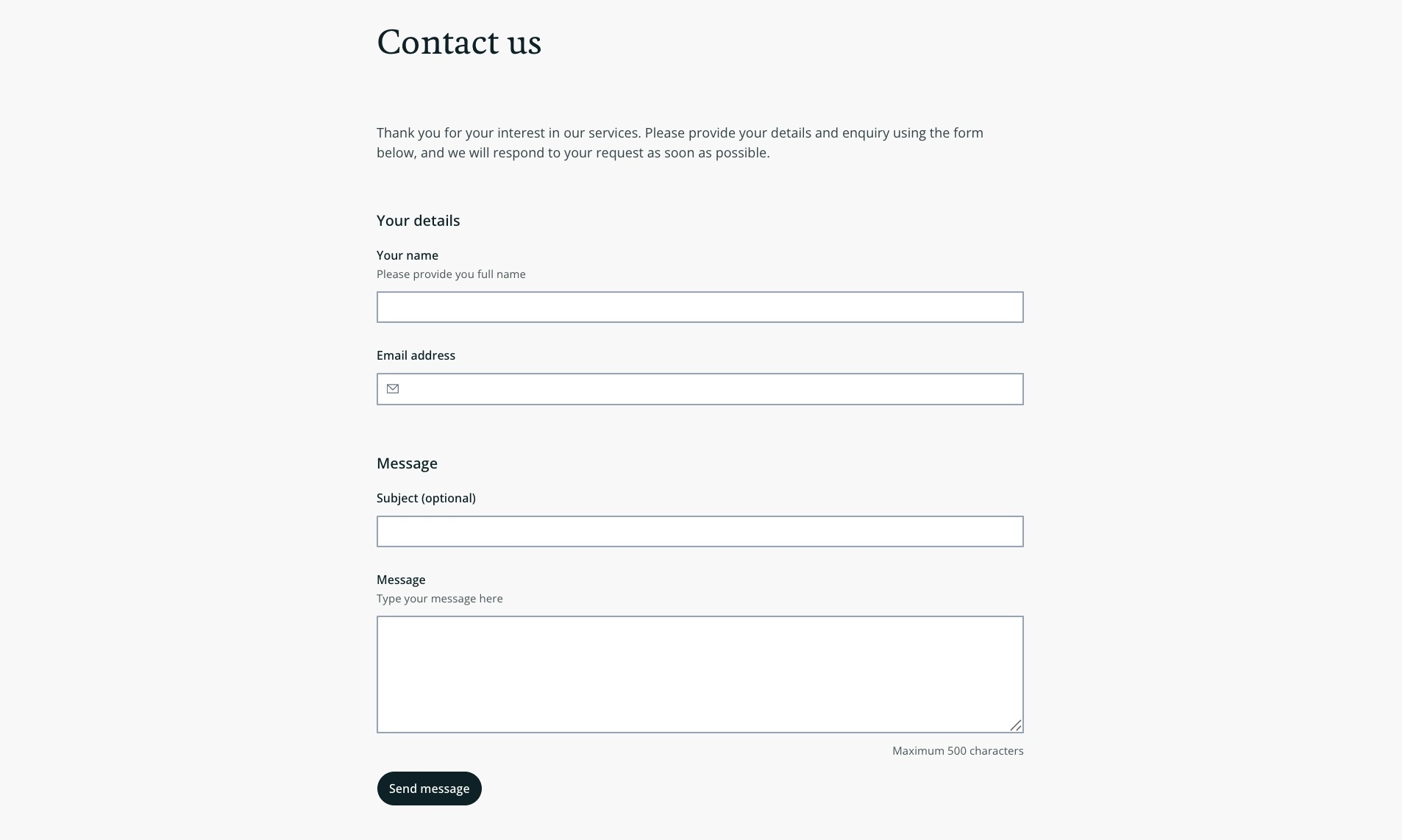
All Cambridge Web Platform websites include a pre-built Contact Us form. The Contact Us form contains fixed fields that cannot be changed and will always include "Name", "Email Address", and "Message". You cannot create additional forms or customise form fields, as this is not supported on the platform.
Configuring the Contact Us form
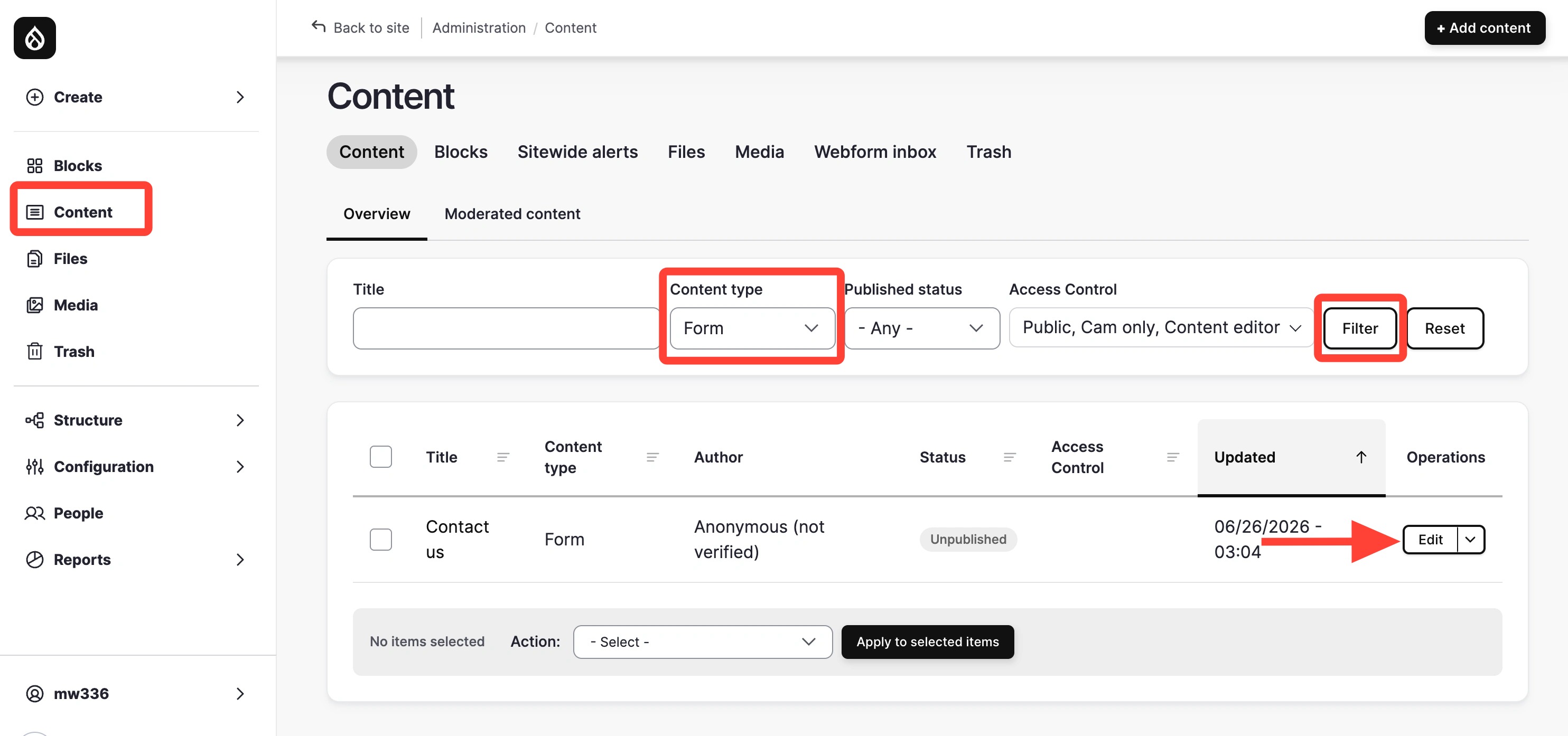
1. To find the form, go to "Content", filter by "Content Type: Form", and click "Filter". Find the "Contact Us" form and click "Edit" to configure it.
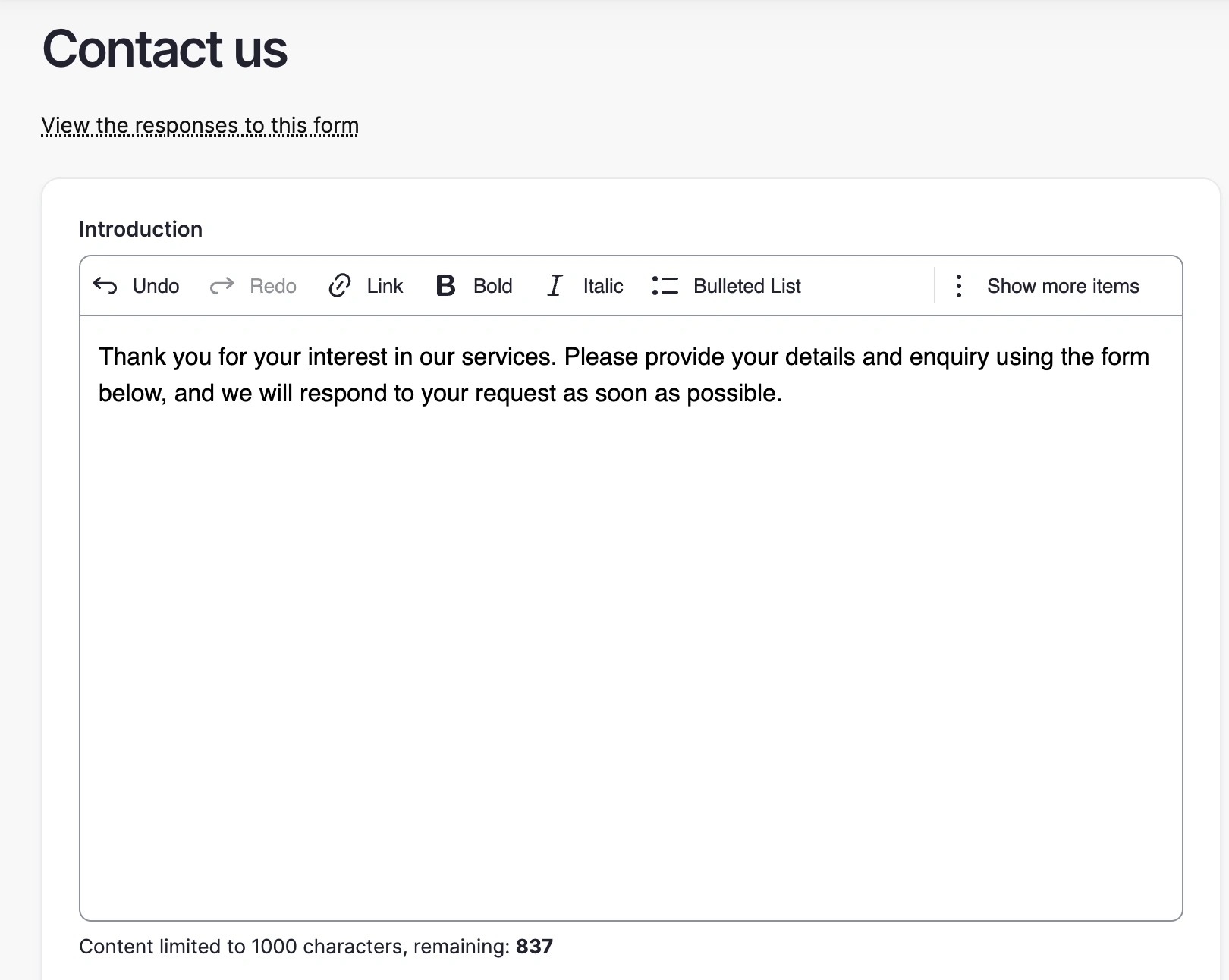
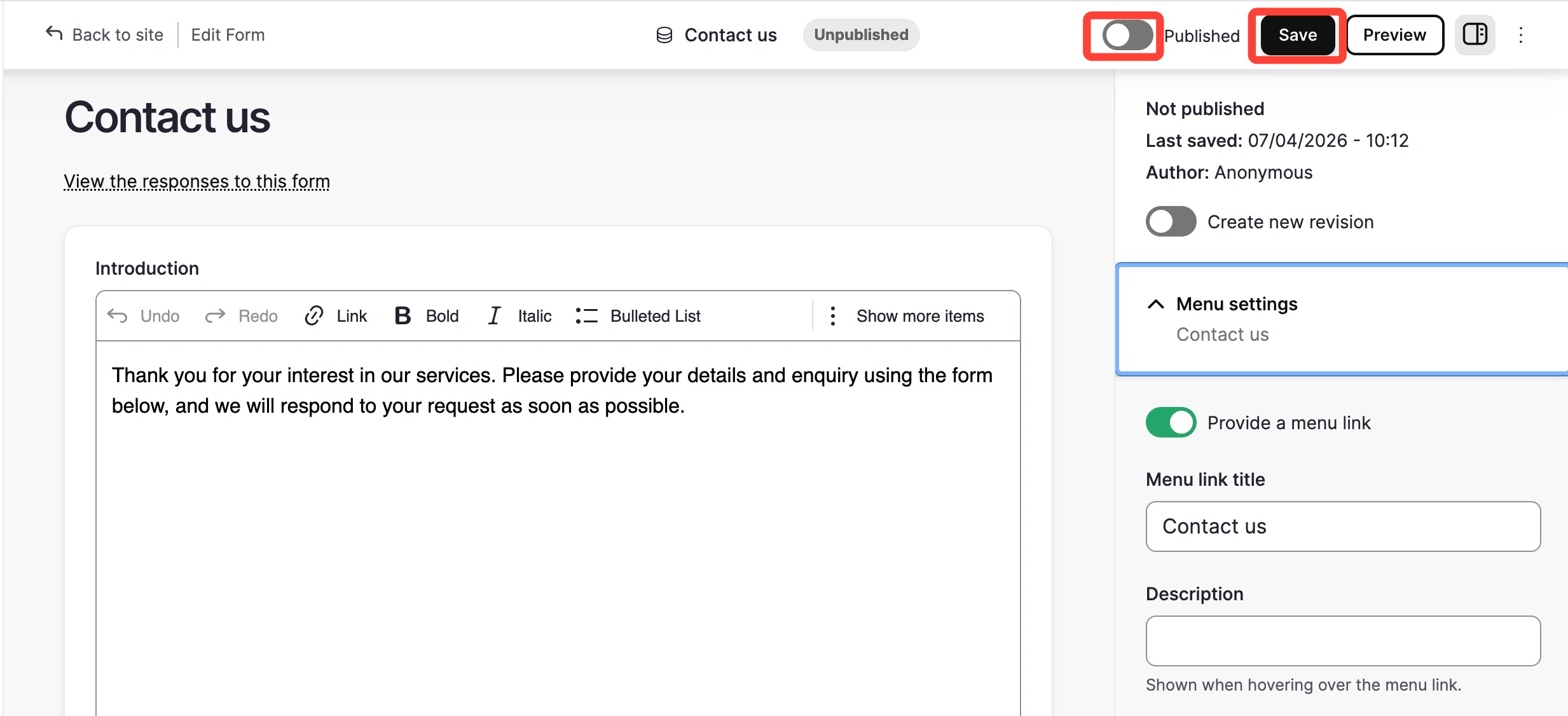
2. Add introductory text to the "Introduction" field to encourage visitors to get in touch.
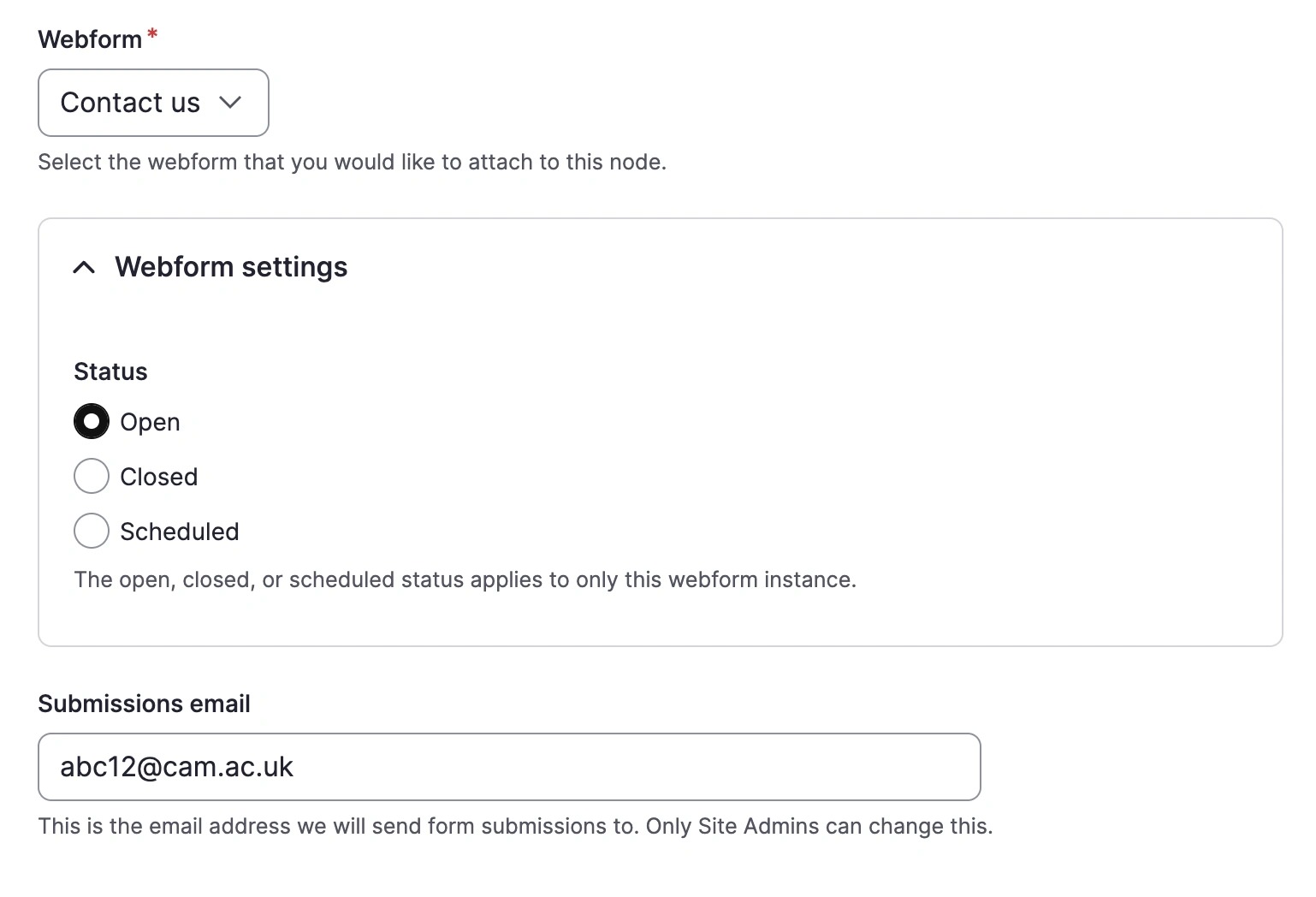
3. In the "Webform" field, select "Contact us" from the drop-down list. Then configure the form status in "Webform Settings" by choosing Open, Closed, or Scheduled. Finally, specify the email address to which submissions should be sent.
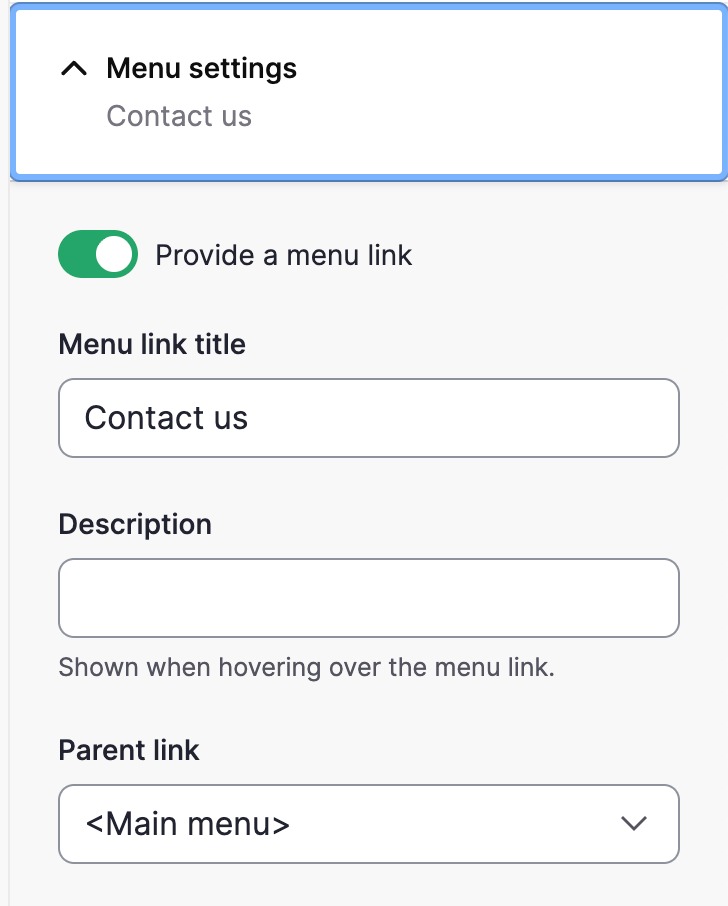
4. You can add the form to the navigation by expanding "Menu Settings" in the right-hand panel.
Use the "Provide a menu link" toggle to enable a navigation link, then select a Parent Link. To display the link in the main horizontal navigation bar, leave Parent Link set to Main menu (default).
5. Once the form is ready, use the "Published" toggle to make it live, then click "Save" to apply your changes.
6. The form will appear on your website once published. The available fields are fixed and cannot be modified. The form will always include "Name", "Email Address", and "Message" fields.
Video instructions
Watch step-by-step video instructions on Scribe.how.