
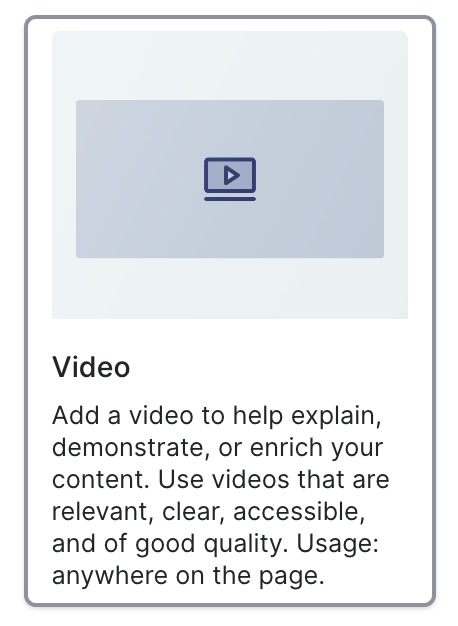
Video
Use this component if a video is needed to help users understand information in a different way.
See examples of all the available content types and components on the Cambridge Web Platform showcase site.
Where to use this component
Anywhere on a basic page or in the main content of a news article.
How to add this component to the page
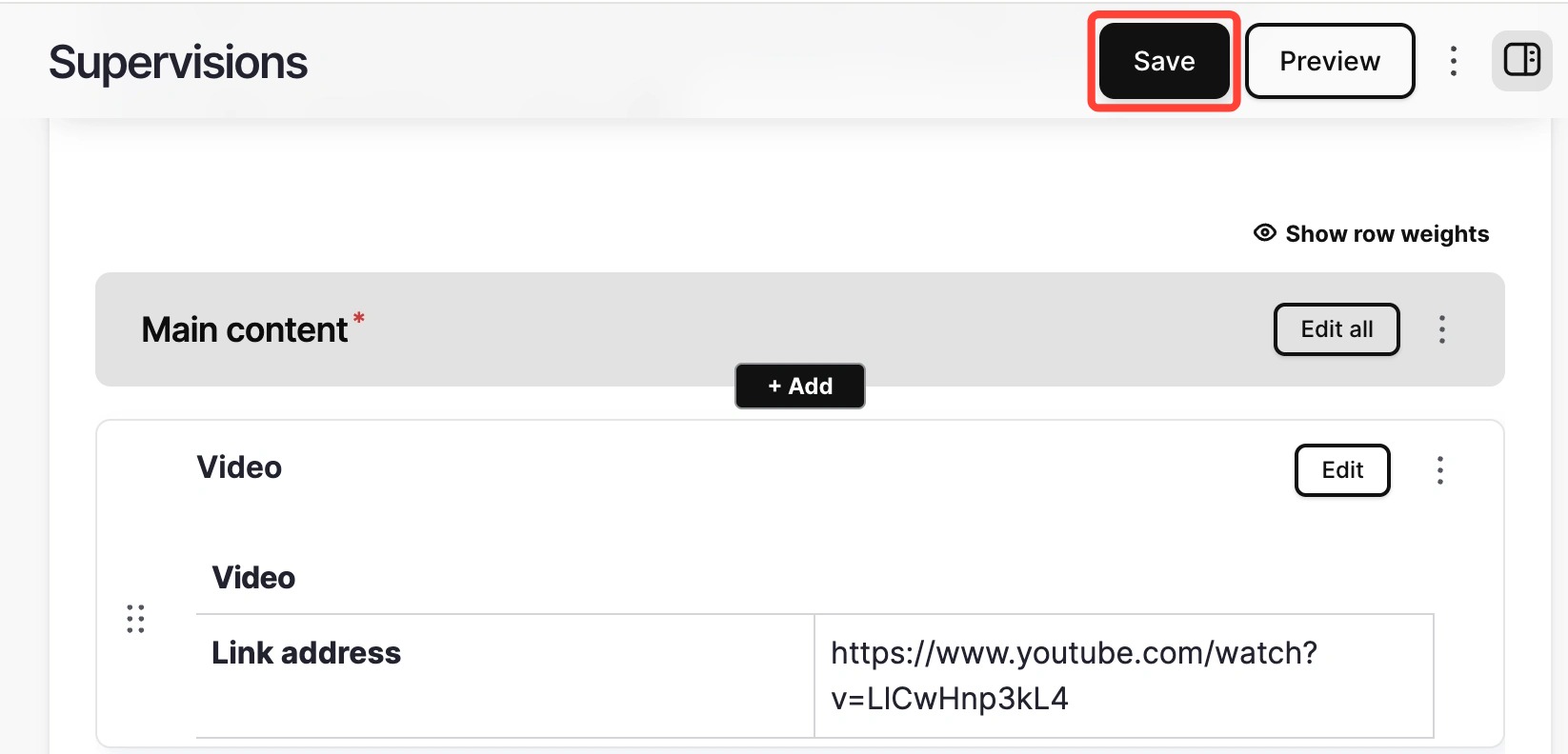
1. Go to the page you want to edit, or the page you have created. In the Main content section select the "+ Add" button. Choose the "Video" component.
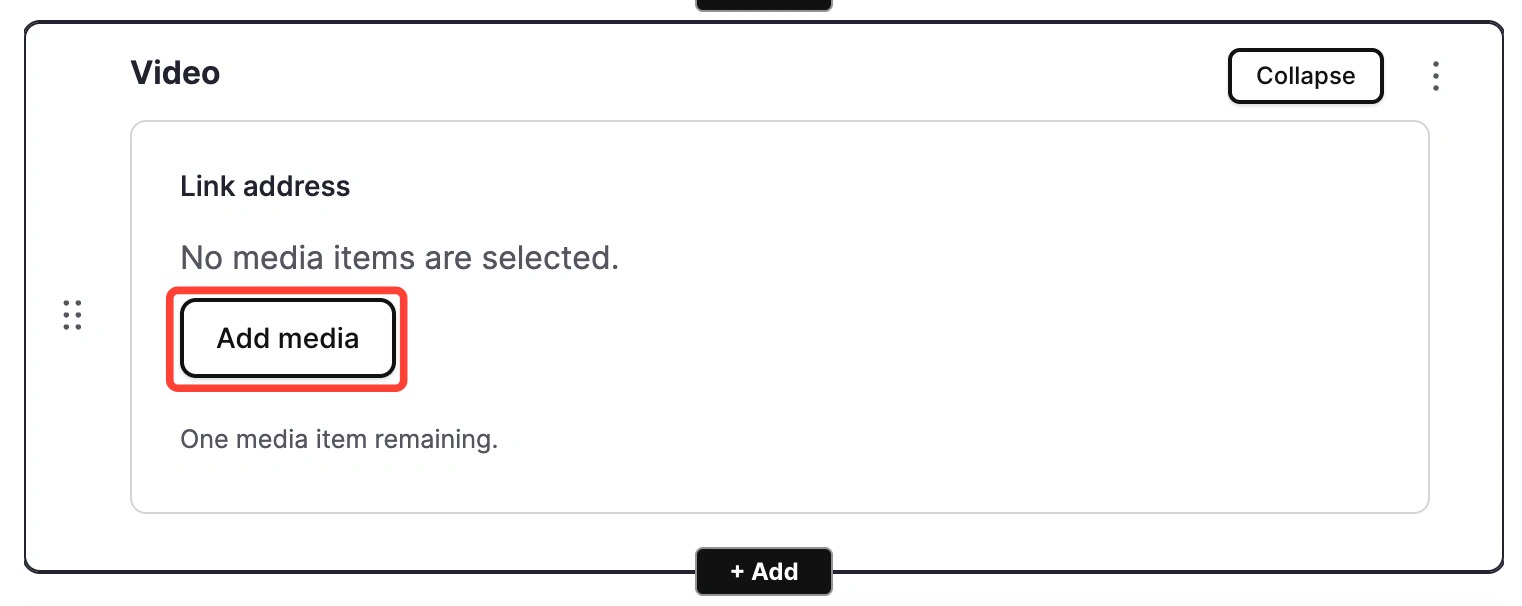
2. In order to add a video, click the "Add Media" button.
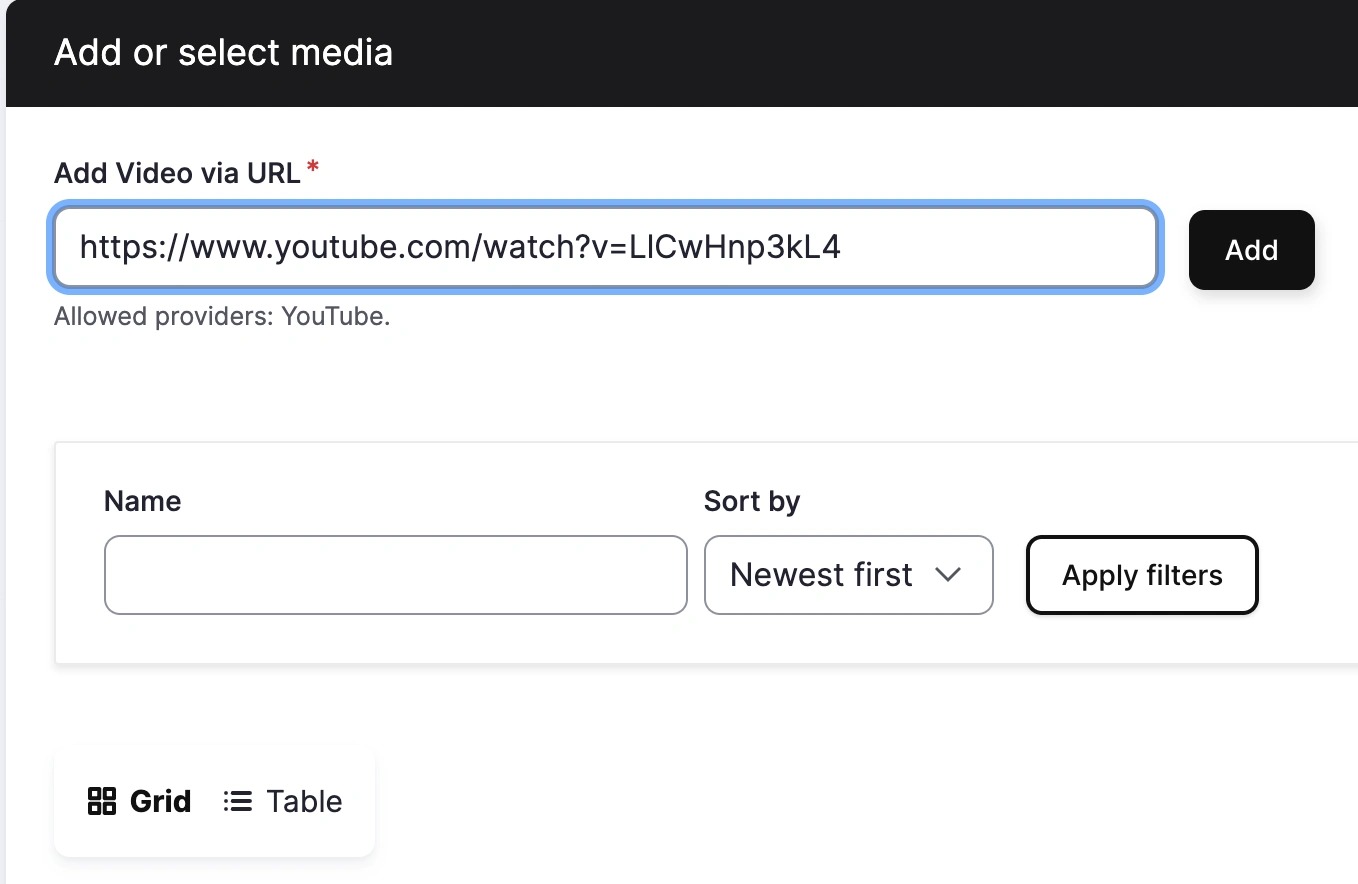
3. Provide the URL of the YouTube video and click "Add".
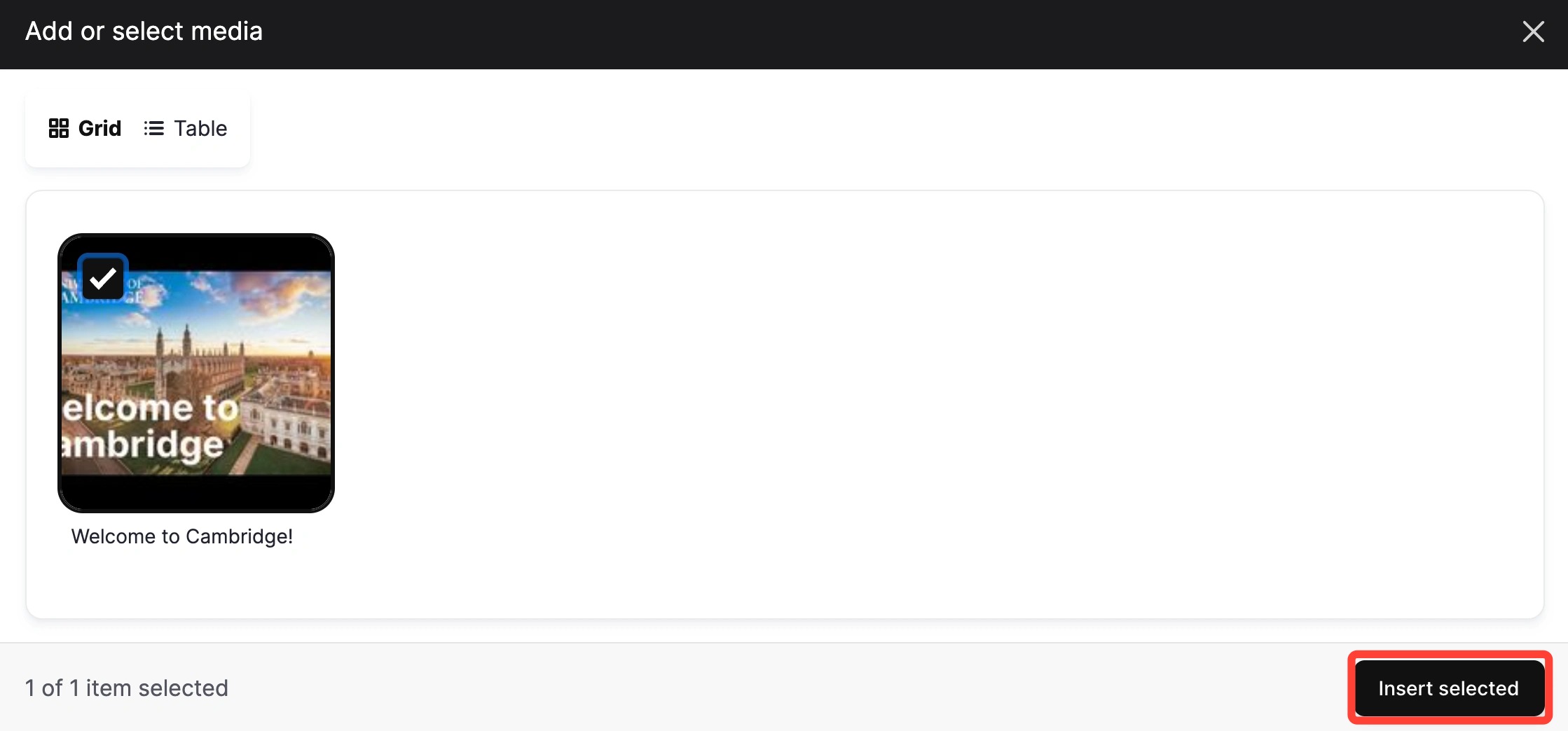
4. Click the "Save" button then "Insert selected".
5. When your webpage is ready, click the "Save" button.
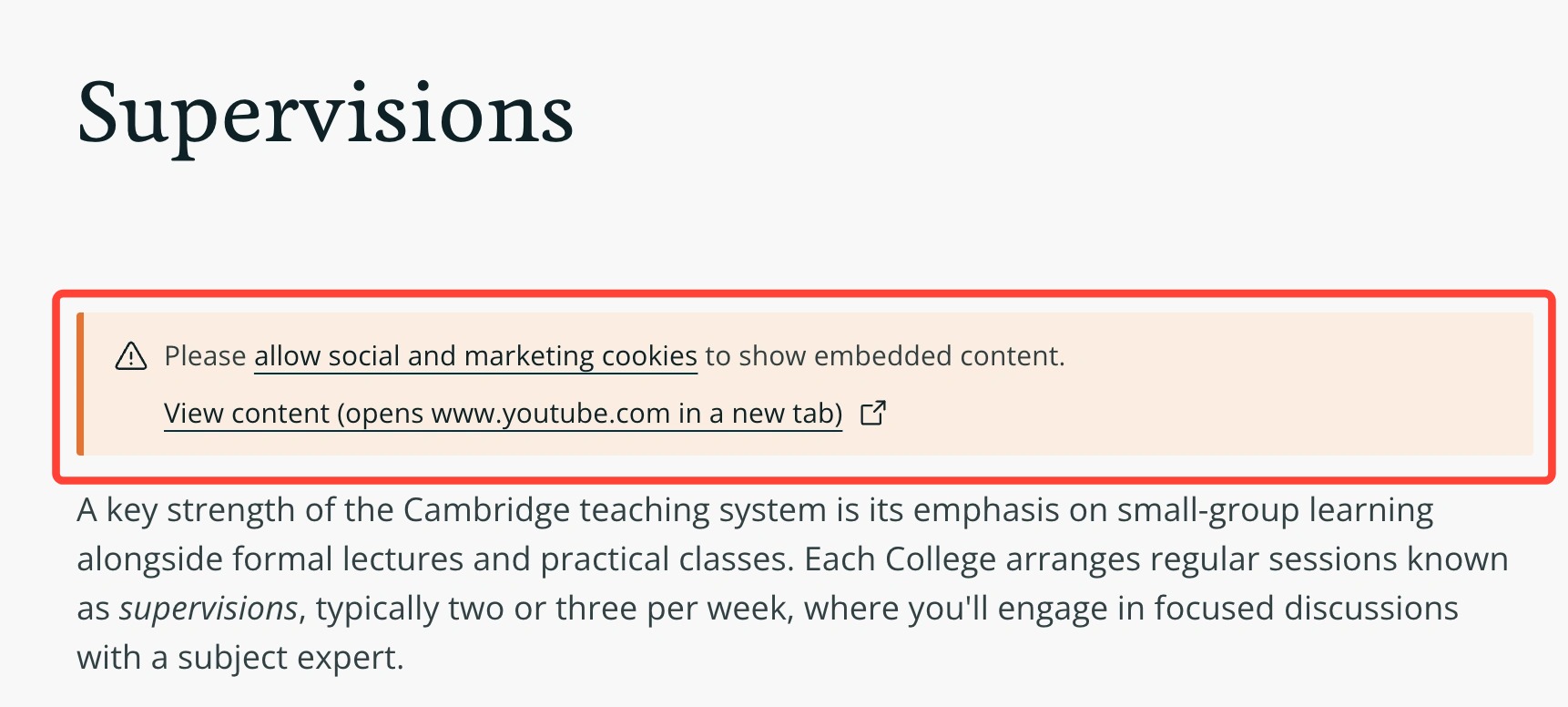
6. If users accept all social and marketing cookies, the video will play directly within the webpage. If users reject these cookies, the embedded video will be replaced with the message shown below. They will still have the option to open the video in a new tab and watch it directly on YouTube.
Video instructions
Watch step-by-step video instructions on Scribe.how.